Introduction
Modern laptops are increasingly designed around portability. Thin bodies, lightweight construction, and USB-C connectivity make it possible to carry a capable computer almost anywhere. The tradeoff is that many laptops provide fewer physical ports than older desktop-oriented computers.
A user who wants to connect two external monitors, a keyboard, mouse, Ethernet cable, external storage, memory cards, headphones, and a charger can quickly run out of available connections.
A USB-C laptop docking station can address this problem by acting as a central connectivity point. Instead of connecting every peripheral directly to the laptop, a compatible dock can provide multiple display, USB, networking, storage, audio, and charging interfaces through a single host connection.
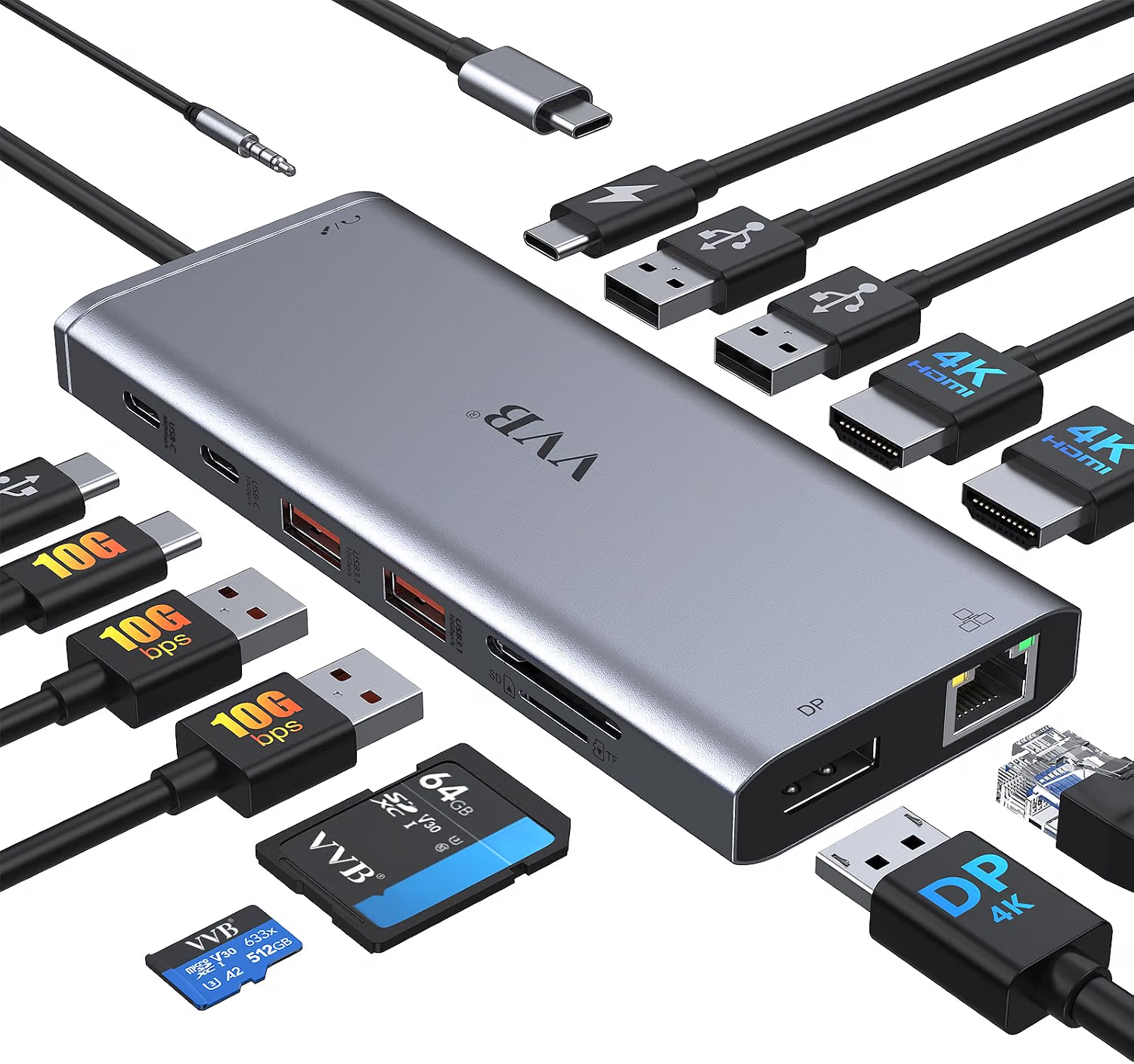
The product associated with the provided Amazon listing is a 14-in-1 USB-C docking station from VVB, identified by ASIN B0D2BW24HM. Available product specifications describe two HDMI outputs, a DisplayPort output, Gigabit Ethernet, USB-A and USB-C data ports, SD and microSD card readers, a 3.5mm audio connection, and USB-C Power Delivery. The manufacturer/product information also describes support for dual-monitor and triple-display configurations under specified Windows setups.
The display specifications require some explanation because the available outputs do not all operate at the same resolution and refresh rate simultaneously. According to the listed specifications, a single HDMI 1 or DisplayPort connection can reach up to 4K at 60Hz, while HDMI 2 is listed at up to 4K at 30Hz when used individually. In a dual-monitor configuration, the stated combinations can be 4K at 30Hz plus 1080p at 60Hz, while a triple-display setup is listed at 1080p.
This distinction is important because “dual monitor” does not automatically mean that two 4K 60Hz displays will operate simultaneously.
This article explains how the docking station works, what its ports are intended to do, how dual and triple displays differ from single-display use, what compatibility requirements matter, and how this type of dock compares with simpler USB-C hubs.
Key Features
14-in-1 Port Expansion
The most obvious characteristic of this docking station is the number of available connections.
The listed configuration provides 14 ports or functions, including:
- Two HDMI outputs
- One DisplayPort output
- USB-C Power Delivery input
- Gigabit Ethernet
- One USB-C data port
- Two USB-A 3.1 ports
- One USB-C 2.0 port
- Two USB-A 2.0 ports
- SD card reader
- microSD/TF card reader
- 3.5mm microphone/audio connection
The product information identifies the USB 3.1 data ports as supporting up to 10Gbps, while the USB 2.0 ports are listed at up to 480Mbps.
This makes the device more comprehensive than a basic USB-C hub with only a few ports.
A user can potentially create a desk setup containing external displays, wired networking, storage, USB peripherals, memory cards, headphones, and laptop charging without occupying multiple ports directly on the computer.
Dual HDMI Outputs
Two HDMI ports are included.
This makes the docking station relevant to users who want to work with two external HDMI displays.
However, the two HDMI connections should not be assumed to provide identical specifications.
The listed product information states that HDMI 1 can reach up to 4K at 60Hz when used individually, while HDMI 2 can reach up to 4K at 30Hz when used individually. For dual-monitor operation, the specified combination is up to 4K at 30Hz on one display and 1080p at 60Hz on the other under the stated conditions.
This is a good example of why users should examine the complete display configuration rather than relying only on the phrase “dual monitor.”
DisplayPort Output
In addition to the two HDMI outputs, the dock includes DisplayPort.
The product information identifies the DisplayPort connection as supporting up to 4K at 60Hz when used individually.
DisplayPort is widely used with computer monitors, particularly desktop-oriented displays.
Having both HDMI and DisplayPort can provide more flexibility when a workstation contains different monitor types.
Support for Multiple Displays
The dock is designed around multi-display connectivity.
According to the listed specifications, compatible Windows systems can use dual-monitor and triple-display configurations.
The stated examples include:
- One HDMI 1 or DisplayPort: up to 4K at 60Hz
- HDMI 2 used individually: up to 4K at 30Hz
- Dual displays: up to 4K at 30Hz plus 1080p at 60Hz
- Triple displays: up to 1080p
These modes depend on the host computer, its graphics architecture, the USB-C connection, and the operating system.
The product information also notes that MacBook computers may mirror the same image on external displays rather than providing the same extended multi-monitor behavior available on compatible Windows systems.
This is one of the most important compatibility points to understand before planning a multi-monitor workstation.
USB-C Data Connectivity
The docking station includes USB-C data connectivity.
The listed configuration includes one USB-C 3.1-style data port capable of up to 10Gbps and an additional USB-C 2.0 connection.
This allows users to connect modern USB-C peripherals while also retaining compatibility with slower USB accessories.
Possible devices include:
- External SSDs
- USB-C flash drives
- Card readers
- Cameras
- USB-C peripherals
- Other compatible devices
The 10Gbps specification represents the maximum theoretical interface rate rather than a guarantee of a particular file-transfer speed.
USB-A 3.1 Ports
Two USB-A 3.1 ports are listed at up to 10Gbps.
USB-A remains common for keyboards, mice, external storage, printers, webcams, microphones, and other computer accessories.
This combination of USB-C and USB-A makes the dock suitable for workstations that use a mixture of newer and older peripherals.
USB 2.0 Ports
The docking station also provides USB 2.0 connections.
At first glance, a slower USB port might seem unnecessary on a modern dock, but USB 2.0 can be perfectly appropriate for low-bandwidth devices.
Keyboards and mice do not need 10Gbps connectivity.
Using slower ports for simple peripherals can leave the higher-speed connections available for storage and other data-intensive devices.
The listed specifications identify the USB 2.0 ports at up to 480Mbps.
Gigabit Ethernet
A wired Ethernet port is included.
The product specifications identify support for 10/100/1000BASE-T networking, commonly referred to as Gigabit Ethernet.
This can be useful when a laptop primarily relies on Wi-Fi but the user wants a wired network connection at a desk.
Possible applications include:
- Home office
- Business office
- Online meetings
- Large file transfers
- Desktop workstations
- Network storage
- Reliable wired internet connections
Actual internet speed still depends on the network service, router, Ethernet cable, and local network.
A Gigabit Ethernet interface does not automatically provide a gigabit-speed internet connection if the internet service is slower.
SD and microSD Card Readers
The docking station includes both SD and microSD/TF card connectivity.
This can be useful for photographers, videographers, drone users, and other people who regularly move files from removable storage.
A single dock can therefore serve as both a workstation connection point and a media-transfer station.
As with USB storage, actual transfer performance depends on the memory card, card standard, reader, computer, and file sizes.
3.5mm Audio Connection
A 3.5mm microphone/audio connection is also listed.
This provides a convenient option for wired headphones, headsets, or other compatible audio equipment.
For a desk workstation, this can be useful when the laptop is positioned farther away or when the user wants the audio connection available at the same central location as the other peripherals.
100W Power Delivery Input
The dock supports USB-C Power Delivery input of up to 100W.
The available product specifications state that the safe charging output to the laptop is limited to 87W.
This distinction matters.
A 100W PD specification describes the maximum supported power input to the dock under the manufacturer’s stated conditions. It does not mean that the laptop necessarily receives 100W.
Some power is allocated to the docking station and its functions.
The product information also states that the charging adapter and cable are not included in the configuration described.
Understanding Dual-Monitor Connectivity
The phrase “dual monitor docking station” can mean several different things.
Two displays may be connected, but their resolution and refresh rate depend on the host system and dock architecture.
For this product, the listed specifications provide several different display scenarios.
One Display
With one compatible external display connected through HDMI 1 or DisplayPort, the listed maximum is up to 4K at 60Hz.
This can be appropriate for a large high-resolution productivity monitor.
Two Displays
The listed dual-monitor configuration can provide up to 4K at 30Hz on one display and 1080p at 60Hz on the other under the specified setup.
This arrangement may be useful for office work where having two screens is more important than running both at 4K 60Hz.
For example, one display could contain a primary workspace while the second handles email, reference documents, communication tools, or monitoring information.
Three Displays
The product information also describes triple-display support at 1080p under the stated Windows configuration.
This provides another option for users who prefer multiple screens.
However, triple-display functionality requires a compatible host system.
The presence of three display outputs on the dock does not mean every laptop can independently drive three external monitors.
How It Can Be Used
Home Office
A home office can benefit from centralized connectivity.
A typical workstation could include:
- Two external monitors
- Keyboard
- Mouse
- External SSD
- Ethernet cable
- Headset
- Laptop charger
The docking station provides a central point for these connections.
The laptop can remain the primary computer while the dock manages the external equipment.
Professional Office
In a business environment, a laptop can effectively become a desktop workstation when connected to external displays and peripherals.
An employee can arrive with the laptop, connect one USB-C cable to the dock, and use the existing workstation equipment.
This can reduce the number of individual connections that need to be made directly to the laptop.
Programming and Software Development
Developers often work with multiple applications simultaneously.
One display might contain a code editor.
Another could show documentation, a browser, terminal windows, logs, or testing tools.
A multi-monitor arrangement can provide more workspace without requiring multiple computers.
The docking station’s USB ports can also connect keyboards, mice, external storage, and other peripherals.
Content Creation
Photographers and video editors often work with memory cards and external storage.
The SD and microSD readers provide direct access to removable media.
External SSDs can be connected through the higher-speed USB ports.
An external monitor can provide additional screen space for editing applications.
The actual performance of such a workflow depends heavily on the host laptop, storage hardware, software, and display configuration.
Remote Work
Remote workers may need a stable combination of displays, Ethernet, keyboard, mouse, headset, and storage.
A dock can help keep those devices connected to a central workstation.
This is particularly useful when a laptop moves between home and office environments.
Students
Students can use an external monitor for research, writing, coding, or study.
A second screen can display reference material while the laptop handles the main task.
The dock can also connect a keyboard, mouse, external storage, Ethernet, or other accessories.
Business Presentations
HDMI and DisplayPort can provide options for connecting to external displays.
However, presentation equipment varies considerably.
A projector may support HDMI, while another display may use DisplayPort or a different interface.
The dock’s multiple display outputs can provide additional flexibility, but users should test the exact combination before an important presentation.
Network Storage and Wired Networking
Gigabit Ethernet can be useful when transferring files over a local network.
For example, a laptop connected to a NAS device or office network can use wired Ethernet instead of Wi-Fi.
Actual throughput depends on the network infrastructure.
Who It May Be Suitable For
Laptop Users Building a Desktop Workstation
This is a central use case.
A laptop can remain portable while serving as the computer at a desk.
Users With Multiple Monitors
People who regularly work with two or three displays may benefit from a docking station that provides multiple video outputs.
Professionals Working With Many Peripherals
Users who need displays, storage, USB accessories, Ethernet, memory cards, and audio can benefit from a broader docking station configuration.
Photographers and Content Creators
The integrated SD and microSD readers can simplify media transfer.
Remote Workers
A single dock can keep a home-office workstation organized around one host connection.
Windows Users With Compatible USB-C Video Output
The product’s multi-display specifications are particularly relevant to compatible Windows laptops.
Important Things to Consider
Not Every USB-C Port Supports Video
This is one of the most important points.
A USB-C connector can support different technologies.
For the display outputs to work, the laptop’s USB-C or Thunderbolt connection must provide compatible video output.
The product listing specifically warns that not all USB-C devices are compatible and that incompatible devices cannot use the dock’s HDMI or DisplayPort outputs.
Before purchasing, check the laptop’s specifications for:
- DisplayPort Alt Mode
- Thunderbolt 3
- Thunderbolt 4
- USB4
- External-display support
Dual 4K 60Hz Should Not Be Assumed
The product is described as supporting dual displays, but the listed resolutions are not two independent 4K 60Hz signals.
The stated dual-monitor configuration includes 4K at 30Hz plus 1080p at 60Hz.
This distinction is important for users shopping specifically for two high-resolution, high-refresh-rate monitors.
Triple Displays Are Also Hardware-Dependent
The dock lists triple-display support at 1080p under the specified Windows setup.
A laptop must have sufficient graphics and display-output capabilities to support the arrangement.
Mac Compatibility Requires Special Attention
The product information specifically states that MacBook laptops may only display the same image on external monitors rather than providing independent extended displays in the same manner as compatible Windows systems.
This is an important limitation for Mac users planning a multi-monitor workspace.
Mac display support varies significantly by model, so the exact computer should always be checked.
Power Delivery Requires the Right Charger
The dock supports up to 100W PD input and lists up to 87W safe laptop charging output.
The charging adapter and cable are not included in the listed package configuration.
Users therefore need an appropriate USB-C PD charger.
87W May Not Be Enough for Every Laptop
Some high-performance laptops require substantial power under heavy workloads.
A dock providing up to 87W to the laptop may be sufficient for many systems but not necessarily equivalent to the laptop’s original high-wattage power adapter.
Users should check their computer’s recommended charging wattage.
USB Bandwidth Is Shared
The USB ports ultimately communicate with the host computer through a shared connection.
Using multiple high-speed storage devices simultaneously can reduce the bandwidth available to each device.
USB 2.0 and USB 3.1 Ports Have Different Roles
The product includes both high-speed and lower-speed USB ports.
Use the higher-speed ports for demanding data devices such as external SSDs.
Low-bandwidth peripherals such as keyboards and mice can use USB 2.0 ports.
This can help preserve faster ports for devices that actually need them.
Ethernet Speed Depends on the Network
The dock supports Gigabit Ethernet.
That does not guarantee 1Gbps internet service.
If an internet plan provides 300Mbps, for example, the Ethernet adapter cannot turn that connection into a 1Gbps internet service.
Local network performance can also depend on the router, switch, cables, and other equipment.
Display Cables Still Matter
The docking station provides the ports, but the display cable must also support the desired resolution and refresh rate.
An older or inappropriate HDMI cable can become a limitation.
Adapters and Converters May Not Be Supported
The product information states that the multi-monitor dock does not support using converters.
This is particularly relevant when planning unusual monitor configurations.
A direct connection from the dock’s native output to the appropriate monitor input is preferable when supported.
Understanding the USB Ports
The dock provides several USB speed categories.
10Gbps-Class Ports
The listed USB-C and USB-A 3.1 ports support up to 10Gbps.
These are the logical choice for:
- External SSDs
- Fast USB flash drives
- High-speed storage
- Large file transfers
480Mbps Ports
The USB 2.0 connections are listed at up to 480Mbps.
They are well suited to:
- Keyboard
- Mouse
- Simple controller
- Printer
- Basic peripheral
- Other low-bandwidth devices
A keyboard does not require a 10Gbps connection.
Using a USB 2.0 port for a keyboard can leave the faster ports available for storage.
Docking Station Versus USB-C Hub
A compact USB-C hub typically offers a handful of connections.
For example, a small hub may include:
- HDMI
- USB-A
- USB-C
- SD card
- Power Delivery
A docking station generally provides more comprehensive desktop connectivity.
This VVB model extends that concept with:
- Multiple HDMI outputs
- DisplayPort
- Gigabit Ethernet
- Multiple USB speeds
- SD
- microSD
- Audio
- Power Delivery
The result is a device designed more toward a permanent or semi-permanent workstation than a simple travel adapter.
Docking Station Versus Traditional Desktop Dock
Traditional proprietary laptop docking stations may be designed around a particular manufacturer or laptop family.
USB-C docking stations can be more flexible because USB-C and Thunderbolt connections are widely used across manufacturers.
However, compatibility is still not universal.
A USB-C connector does not guarantee that every laptop supports every function.
Users should compare the dock’s requirements with the exact laptop model.
HDMI Versus DisplayPort
Both HDMI and DisplayPort can provide high-quality digital video.
HDMI
HDMI is common on:
- TVs
- Projectors
- Monitors
- Conference-room displays
It is often convenient when connecting to consumer electronics.
DisplayPort
DisplayPort is especially common on desktop computer monitors.
It can be useful for workstation environments.
Having both interfaces available gives users more flexibility when building a mixed-display setup.
SD and microSD Workflow
The integrated card readers can simplify media management.
A photographer could place a full-size SD card into the SD slot.
A drone or action-camera user may instead use microSD.
Once connected, the computer can access the storage as supported by the operating system.
Users should safely eject storage cards before removing them to reduce the risk of file corruption.
Ethernet in a Laptop Workstation
Wi-Fi is convenient, but wired Ethernet remains useful in many environments.
A wired connection can be practical for:
- Office networks
- Large file transfers
- Network-attached storage
- Stable video conferencing
- Desktop workstations
- Network testing
The dock’s Gigabit Ethernet connection provides a physical network interface without requiring a separate USB Ethernet adapter.
Audio Connectivity
The 3.5mm audio connection provides another convenience for desktop setups.
A wired headset can remain connected to the docking station while the laptop remains connected through USB-C.
This can make it easier to manage a workstation where the computer is positioned farther away from the user’s chair.
Audio behavior can depend on the operating system and device configuration.
Practical Workstation Configuration
Consider a professional using a Windows laptop at a desk.
The workstation could contain:
- 4K monitor through DisplayPort
- 1080p monitor through HDMI
- Keyboard through USB
- Mouse through USB 2.0
- External SSD through 10Gbps USB
- Ethernet cable
- Wired headset
- Laptop charger
The docking station provides the physical connections.
The laptop only needs its compatible USB-C connection to the dock plus the appropriate power connection through the dock.
The exact display configuration would still be limited by the dock’s supported combinations and the laptop’s graphics capabilities.
Troubleshooting Common Issues
External Monitor Does Not Work
First check whether the laptop’s USB-C port supports video output.
Then check the display cable and monitor input.
Try using one external monitor at a time.
This can help identify whether the problem is related to multi-display bandwidth or basic compatibility.
One Monitor Works but the Second Does Not
Check the laptop’s multi-monitor support.
Then check the dock’s supported combination.
The product’s dual-display configuration has specific resolution and refresh-rate limitations.
Both Monitors Show the Same Image
This may be related to the operating system or host hardware.
On compatible Windows systems, display settings may allow extended desktop mode.
On some MacBook configurations, external displays may mirror rather than extend depending on the hardware and dock architecture.
Display Resolution Is Lower Than Expected
Check:
- Laptop GPU/display capability
- USB-C video standard
- Dock output being used
- Monitor capability
- Cable
- Operating-system settings
Not every output on the dock has the same maximum specification.
Laptop Does Not Charge Through the Dock
Check whether the laptop supports USB-C Power Delivery.
Then verify that the charger provides sufficient wattage.
The dock’s charging output is listed at up to 87W under its specified configuration.
External SSD Is Slow
Use one of the higher-speed USB ports.
Check the SSD’s own specifications.
Avoid comparing the theoretical 10Gbps USB interface directly with real-world file-transfer speeds.
Ethernet Is Not Reaching Gigabit Speeds
Check the Ethernet cable, router or switch, network adapter settings, and internet service.
A Gigabit Ethernet interface represents the maximum capability of the wired interface, not a guarantee of internet speed.
SD Card Is Not Detected
Remove and reinsert the card.
Check whether the card is recognized by another reader.
Also verify that the card is not physically damaged or corrupted.
USB Devices Disconnect
Disconnect some peripherals and test again.
If the problem disappears when high-power devices are removed, the issue may involve power availability.
If the problem occurs during simultaneous high-speed transfers, shared bandwidth may also be a factor.
Frequently Asked Questions
What is this USB-C docking station?
It is a 14-in-1 multi-port docking station from VVB designed to expand a compatible laptop’s connectivity with multiple displays, USB ports, Ethernet, memory-card readers, audio, and USB-C Power Delivery.
How many ports does it have?
The listed configuration provides 14 ports or functions, including dual HDMI, DisplayPort, USB connections, Ethernet, SD/microSD, audio, and Power Delivery.
Does it support two monitors?
Yes, the product is designed for dual-monitor operation on compatible systems.
However, the supported resolution and refresh rate depend on the particular configuration. The listed dual-display example is up to 4K at 30Hz plus 1080p at 60Hz.
Can it support three monitors?
The product information describes triple-display support at 1080p for compatible Windows systems.
Does it support 4K at 60Hz?
A single HDMI 1 or DisplayPort connection is listed as supporting up to 4K at 60Hz under the applicable conditions.
Can both HDMI ports output 4K at 60Hz simultaneously?
The listed specifications do not describe two simultaneous 4K 60Hz HDMI outputs.
The specified dual-monitor configuration is 4K at 30Hz plus 1080p at 60Hz.
Does it work with MacBook?
The product listing identifies MacBook compatibility, but the multi-display behavior differs from compatible Windows configurations. The listing states that MacBook systems only support the same image on external monitors in the described configuration.
Exact behavior depends on the MacBook model and operating system.
Does it work with Dell laptops?
The product is listed as compatible with various Dell laptop families, including Latitude, Inspiron, Vostro, and XPS models.
The exact USB-C capabilities of the individual laptop should still be verified.
Does it work with Lenovo ThinkPad?
The product information lists Lenovo ThinkPad systems among compatible devices.
The specific ThinkPad model should be checked for USB-C video and Power Delivery support.
Does it work with HP laptops?
The listed compatibility includes HP EliteBook, ZBook, and ProBook systems.
Again, compatibility depends on the exact model and port capabilities.
Does the laptop need Thunderbolt?
Not necessarily.
The product is designed to work with compatible USB-C connections that provide the required functionality. The listing also references Thunderbolt 3 and Thunderbolt 4 systems.
Does every USB-C port work with this dock?
No.
The host port must support the required video-output and other functions.
Does it provide Ethernet?
Yes. The listed Ethernet interface supports 10/100/1000BASE-T Gigabit Ethernet.
Does it have an SD card reader?
Yes.
The configuration includes SD and microSD/TF card-reader functionality.
Does it have USB-C ports?
Yes.
The listed configuration includes USB-C data and USB-C Power Delivery connections.
Are all USB ports the same speed?
No.
The listed configuration includes 10Gbps-class USB 3.1 ports as well as USB 2.0 ports rated at up to 480Mbps.
Which ports should I use for an external SSD?
A high-speed external SSD should generally be connected to one of the higher-speed USB ports.
Can I connect a keyboard and mouse?
Yes.
A keyboard and mouse are common low-bandwidth peripherals and can be connected through the available USB ports.
Can I connect a webcam?
A compatible USB webcam can be connected.
The actual performance depends on the camera and other USB devices sharing the host connection.
Does it support wired headphones?
The dock includes a 3.5mm microphone/audio connection according to the listed specifications.
Can it charge a laptop?
Yes, when the laptop supports USB-C Power Delivery and an appropriate charger is connected.
Does it provide 100W charging to the laptop?
The dock accepts up to 100W PD input, while the listed safe laptop charging output is limited to 87W.
Does the package include a charger?
The listed product information states that the charging adapter and cable are not included.
Is 87W enough for a laptop?
It depends on the laptop.
Many productivity laptops can operate and charge within that range, while some high-performance laptops may require more power under demanding workloads.
Does it require an internet connection?
No internet connection is required for the dock itself.
An internet connection is only necessary for online services such as web browsing, cloud applications, or network-based activities.
Can I use Ethernet and Wi-Fi at the same time?
The computer’s operating system can generally manage multiple network interfaces, but the preferred active connection depends on system configuration.
Does the dock improve internet speed?
No.
It provides a wired network interface. It cannot increase an internet service beyond the speed provided by the network connection.
Does it support 10Gbps USB?
The listed USB-C and USB-A 3.1 ports support data transfer up to 10Gbps.
Does it have USB 2.0 ports?
Yes.
Two USB-A 2.0 ports and one USB-C 2.0 port are listed in the configuration.
Why include USB 2.0 ports?
They are useful for low-bandwidth peripherals such as keyboards and mice, leaving faster ports available for storage and other demanding devices.
Can I use this with a desktop PC?
It may be useful with compatible USB-C desktop systems, but its primary application is laptop connectivity. The desktop’s USB-C port must support the required functions.
Can I use an adapter between the laptop and dock?
The product information specifically states that the multi-monitor dock does not support using converters.
Direct compatibility should therefore be confirmed before adding adapters or converters.
Why is one monitor limited to 30Hz in dual-monitor mode?
The available bandwidth and display architecture determine the supported combinations. The product’s listed dual-display configuration specifies 4K at 30Hz plus 1080p at 60Hz.
Can I use a 144Hz monitor?
A high-refresh-rate monitor can potentially connect, but the available refresh rate depends on the dock output, resolution, host computer, cable, and display capabilities.
The product’s published 4K specification should not be interpreted as guaranteeing 144Hz operation.
Conclusion
The VVB USB-C laptop docking station associated with ASIN B0D2BW24HM is designed as a broad connectivity solution for compatible laptops and workstations.
Its 14-in-1 configuration combines two HDMI outputs, DisplayPort, multiple USB-A and USB-C ports, Gigabit Ethernet, SD and microSD card readers, a 3.5mm audio connection, and USB-C Power Delivery.
The combination is useful for users who want to turn a USB-C laptop into a more complete desktop workstation.
A home-office setup can use external monitors, keyboard, mouse, Ethernet, storage, and audio through the dock. Photographers can take advantage of the SD and microSD readers, while professionals working with large files can use the higher-speed USB connections for compatible external storage.
The multi-monitor capability is one of the dock’s most significant features, but it also requires the most careful interpretation.
A single HDMI 1 or DisplayPort connection can reach up to 4K at 60Hz according to the listed specifications. Dual-monitor configurations have different limits, including a stated combination of 4K at 30Hz and 1080p at 60Hz. Triple-display operation is listed at 1080p for compatible Windows systems.
This means the dock should not be viewed simply as a device that automatically delivers two independent 4K 60Hz displays.
The host laptop is equally important.
The USB-C port must support the required video-output technology, and the laptop’s graphics hardware and operating system determine what display configuration is actually possible. Mac users should pay particular attention to the product’s stated multi-monitor limitations, since the listed behavior differs from the Windows configuration.
Power Delivery is another practical feature. The dock accepts up to 100W of USB-C PD input and lists up to 87W of laptop charging output. An appropriate charger and cable are required, and the listed package does not include the charging adapter.
The dock’s mixture of 10Gbps-class USB ports and slower USB 2.0 ports also makes sense when the different roles of peripherals are considered. External SSDs and other high-speed devices can use the faster ports, while keyboards, mice, and other low-bandwidth accessories can use USB 2.0 connections.
Overall, a multi-port docking station such as this is best understood as a central connectivity platform rather than simply a collection of adapters. Its usefulness depends on how well its specifications match the host laptop, monitors, peripherals, network equipment, and charging system.
Before setting up a workstation, users should verify USB-C video support, Power Delivery compatibility, display requirements, USB speeds, and the exact limitations of their computer. These checks are particularly important when planning two or three external displays.
For a compatible laptop, the combination of multiple display outputs, USB expansion, wired networking, memory-card readers, audio, and charging can provide the connections needed for a flexible workstation while allowing the laptop itself to remain portable.