Introduction
Modern laptops and tablets continue to become thinner, lighter, and more portable, but that design trend can come with a practical tradeoff: fewer physical ports.
A computer may provide only a handful of USB-C connections while users still need to connect external monitors, USB storage, keyboards, mice, cameras, card readers, and other peripherals. A USB-C hub can help bridge that gap by combining several connections into one compact accessory.
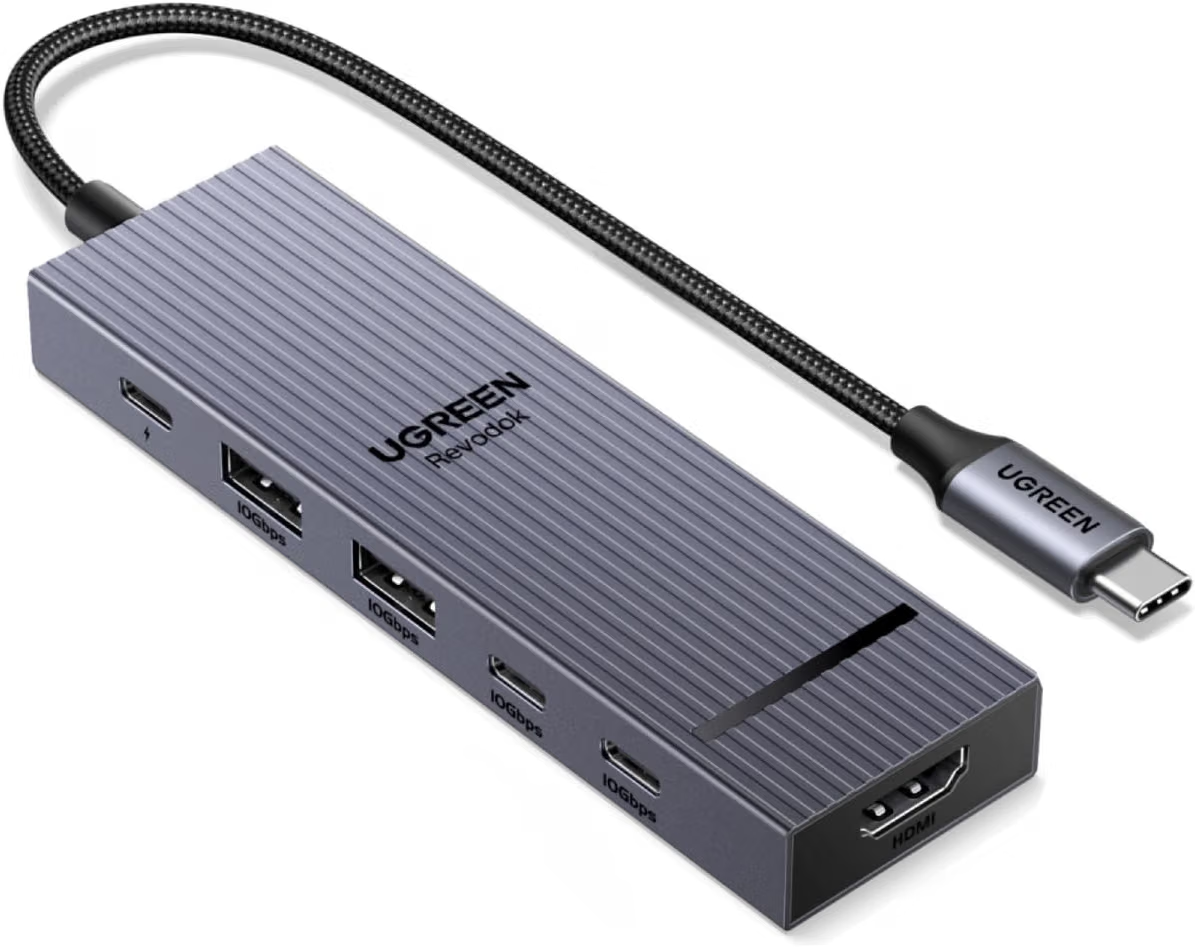
The UGREEN Revodok Pro USB-C Hub 6-in-1 10Gbps 4K 60Hz HDMI is designed around this concept. The model associated with the product listing provides six connection functions, including an HDMI output capable of up to 4K at 60Hz, four USB data ports rated for up to 10Gbps, and a USB-C Power Delivery input supporting up to 100W pass-through charging. UGREEN’s specifications indicate that up to 85W can be delivered to a connected laptop after power is allocated to the hub.
This combination makes the hub relevant to several everyday setups, including home offices, mobile workstations, study areas, creative workflows, presentations, and travel.
However, understanding a USB-C hub involves more than counting its ports. USB-C is a connector standard rather than a guarantee that every port supports the same capabilities. The host computer must support the necessary video and charging functions, and the capabilities of the individual ports differ.
For example, UGREEN specifies that the hub’s USB-C data ports are intended for data transfer rather than video output or charging, while the dedicated Power Delivery port is intended for charging. The HDMI port relies on the host device supporting video output through USB-C.
This guide explains what those specifications mean in practical terms, how the UGREEN Revodok Pro can fit into different workflows, what compatibility questions to consider, and how it compares with other general categories of connectivity accessories.
Key Features
Six-in-One Connectivity
The Revodok Pro combines multiple connections into one USB-C hub.
For the version corresponding to the product specifications, the six functions include:
- One HDMI display output
- Two USB-C 10Gbps data ports
- Two USB-A 10Gbps data ports
- One USB-C Power Delivery input
UGREEN identifies the USB data connections as USB 3.2 Gen 2 interfaces capable of up to 10Gbps under suitable conditions.
This arrangement provides a useful balance between newer USB-C peripherals and older or more widely available USB-A accessories.
A user could, for example, connect an external USB-C storage device while also using a USB-A mouse and keyboard, then connect a monitor through HDMI.
The important point is that the hub does not turn one USB-C port into six completely independent high-performance connections. The host connection, operating system, device capabilities, and available bandwidth all influence the actual experience.
10Gbps USB Data Transfer
One of the defining characteristics of this hub is its 10Gbps USB connectivity.
UGREEN lists four USB data ports at up to 10Gbps: two USB-C ports and two USB-A ports.
The 10Gbps specification refers to the theoretical interface speed.
Actual file-transfer performance can be lower because of several factors, including:
- The storage device being used
- The storage device’s internal controller
- The type of files being transferred
- The computer’s USB implementation
- The cable
- Simultaneous activity on other ports
- Operating-system overhead
For example, a fast external SSD can make much better use of a 10Gbps connection than an older USB flash drive.
This distinction is important when evaluating USB specifications. A hub’s maximum interface speed does not guarantee that every connected device will transfer data at that rate.
Two USB-C Data Ports
USB-C has become common on modern laptops, tablets, phones, and external storage devices.
The Revodok Pro provides two USB-C data ports specifically for peripheral connectivity.
These ports can be useful for devices such as:
- External SSDs
- USB-C flash drives
- Cameras
- Card readers
- USB-C peripherals
- Compatible accessories
UGREEN specifically notes that the USB-C ports marked for 10Gbps data do not provide display output or charging functionality.
That distinction should be kept in mind when planning a setup.
A USB-C connector may physically fit a charging cable or display cable, but that does not mean the particular hub port supports those functions.
Two USB-A 10Gbps Ports
USB-A remains extremely common.
Many keyboards, mice, external drives, USB microphones, webcams, printers, and other peripherals continue to use the familiar rectangular USB-A connector.
Having two USB-A data ports allows the hub to support these devices without requiring separate adapters.
The ports are rated for up to 10Gbps according to UGREEN’s product specifications.
For office users, this can be especially convenient because a single USB-C connection to the laptop can provide access to both USB-C and USB-A accessories.
4K 60Hz HDMI Output
The HDMI connection is designed for an external display.
UGREEN specifies support for up to 4K at 60Hz, provided that the host device and connection support the necessary video standard.
A 4K resolution provides a 3840 × 2160 pixel image.
The 60Hz refresh rate means the display can refresh the image up to 60 times per second.
This combination can be useful for:
- Desktop productivity
- Video playback
- Presentations
- Photo editing
- General creative work
- External-monitor setups
The hub can also support lower resolutions and refresh rates depending on the connected equipment.
However, users should not assume that every USB-C computer can automatically produce 4K at 60Hz.
UGREEN notes that the host USB-C port must support video output, and its documentation identifies DisplayPort 1.4 Alt Mode as necessary for achieving 4K at 60Hz in the applicable configuration.
100W Power Delivery Input
The hub also includes a USB-C Power Delivery connection.
UGREEN lists support for up to 100W input and up to 85W pass-through charging to a connected laptop, with power allocated to operate the hub.
This is different from saying that the hub itself supplies 100W directly to the computer.
The 100W figure describes the maximum supported input under the manufacturer’s stated conditions.
To reach the maximum charging configuration, the connected charger and cable must also support the required power level.
UGREEN notes that a compatible 100W PD charger and cable are required for the 85W laptop charging capability.
This arrangement is useful for laptops that rely heavily on USB-C for both connectivity and charging.
Instead of using the laptop’s remaining USB-C port for a charger while another port handles the hub, compatible devices can potentially use a single USB-C connection to the hub for peripherals, display output, and pass-through charging.
How USB-C Hub Bandwidth Works
One of the easiest mistakes to make when researching USB-C hubs is assuming that every advertised speed can be achieved simultaneously by every connected device.
The 10Gbps figure is the maximum interface specification for the relevant USB ports.
Actual performance depends on the complete connection.
Imagine connecting a fast external SSD and transferring a large video file.
The SSD must itself be capable of high-speed transfers.
If the storage device is slower, the hub cannot make it operate at 10Gbps.
Similarly, an older cable may limit performance.
The computer’s USB controller and operating system also contribute to the final result.
This is why a 10Gbps hub should be viewed as providing a high-speed connection standard rather than guaranteeing a fixed real-world file-transfer speed.
How It Can Be Used
Home Office Workstation
A laptop with limited ports can become a more conventional desktop workstation when connected to a hub.
A possible setup could include:
- External HDMI monitor
- USB keyboard
- USB mouse
- External SSD
- USB-C peripheral
- Laptop charger
The hub provides a central connection point between those accessories and the laptop.
This can make it easier to transition between mobile and desk-based work.
Instead of reconnecting several individual devices every time the laptop moves, a user can potentially connect or disconnect the hub’s host cable.
Remote Work
Remote workers often combine laptops with external monitors, webcams, keyboards, mice, and storage.
The HDMI output can provide an external screen, while the USB ports can accommodate common peripherals.
For someone who regularly moves between rooms or locations, a compact hub can reduce the number of cables that need to be connected directly to the laptop.
Photography and Video Workflows
Creative users frequently work with large files.
External SSDs, cameras, USB-C storage devices, and other peripherals can benefit from higher-speed USB connections.
The four 10Gbps data ports provide multiple options for connecting storage and other accessories.
The actual performance still depends on the connected storage hardware.
For example, copying footage from a high-speed external SSD can be considerably different from transferring files from a basic flash drive.
Presentations
A laptop may need to connect to a projector or external monitor during a presentation.
The HDMI port provides a conventional video-output connection.
This can be useful for business meetings, classrooms, conferences, and presentations where HDMI remains a common display interface.
Compatibility should be checked before an important presentation, particularly when using an unfamiliar laptop, projector, or display adapter.
Study and Education
Students can use a laptop with an external monitor while keeping USB peripherals connected.
For example, a larger external screen could display research material while the laptop handles notes or other applications.
USB storage can also be connected through the hub.
Desk-Based Entertainment
A laptop can also serve as an entertainment computer connected to a larger HDMI display.
The hub can connect the display while leaving USB ports available for compatible peripherals.
The 4K 60Hz capability can be relevant for displays that support those specifications, although the source device and content must also support the desired resolution and refresh rate.
Travel
The compact hub format can be useful for users who carry a laptop between locations.
A single accessory can provide access to multiple common interfaces without requiring separate USB-A, USB-C, and HDMI adapters.
Travel users should still consider the number of cables required because the hub does not eliminate the need for appropriate display, charging, and peripheral cables.
Who It May Be Suitable For
Laptop Users With Limited Ports
This is one of the most straightforward use cases.
If a laptop has only a few USB-C connections, a multi-port hub can expand the number of accessible interfaces.
MacBook Users
UGREEN lists compatibility with various MacBook models, including MacBook Air and MacBook Pro systems.
However, Mac users should verify the capabilities of their specific model.
USB-C and Thunderbolt ports can differ between computers, and external-display support can also vary by model.
Windows Laptop Users
The hub can be useful with compatible Windows laptops from manufacturers such as Lenovo, HP, Dell, ASUS, and others.
UGREEN lists several Windows-compatible device families among its supported equipment.
The key requirement is not simply the presence of a USB-C connector.
The USB-C port must support the functions required by the hub.
Tablet Users
Some modern tablets provide USB-C connectivity and can support external displays and peripherals.
UGREEN identifies tablets among compatible device categories.
Tablet support can vary substantially, so the tablet manufacturer’s specifications should be checked before expecting a particular display mode or charging configuration.
Creative Professionals
Users working with large photographs, videos, project files, or external SSDs may benefit from multiple 10Gbps data connections.
The hub can simplify connectivity, particularly in mobile workstation setups.
Students and Mobile Workers
The combination of display output and multiple USB ports can make the hub useful in environments where the same laptop needs to operate in different configurations.
Important Things to Consider
USB-C Does Not Automatically Mean Video Output
This is perhaps the most important compatibility point.
Not every USB-C port supports video output.
UGREEN specifically states that the host device must support video output through USB-C for the HDMI interface to function.
Before purchasing a hub, check whether the computer’s USB-C port supports DisplayPort Alt Mode or another compatible video-output standard.
4K at 60Hz Depends on the Host
The hub’s HDMI interface is specified for up to 4K at 60Hz.
However, the host computer must support the necessary video bandwidth.
UGREEN recommends a host with DisplayPort 1.4 Alt Mode for maximum 4K 60Hz output in the applicable configuration.
If the host only supports an earlier video mode, the display may operate at a lower resolution or refresh rate.
The USB-C Data Ports Are Not Display Ports
The USB-C data ports are designed for USB data transfer.
They should not be confused with USB-C display outputs.
UGREEN specifically states that the 10Gbps USB-C data ports do not support media display or charging.
This is an important distinction because the physical connector looks identical to other USB-C ports.
The PD Port Is for Charging
The Power Delivery port is dedicated to power input.
It does not function as another general-purpose USB data connection.
UGREEN identifies it as a charging-only connection in the product specifications.
A 100W Charger Is Not Automatically Included
The hub’s 100W PD specification refers to its supported charging input.
A compatible charger and cable are necessary to take advantage of the higher charging capability, and UGREEN notes that the charger and charging cable are not included in the referenced configuration.
Users should therefore consider their existing charging equipment.
Charging Power Is Shared
The hub requires some power for its own operation.
That is why UGREEN specifies up to 85W pass-through from a 100W input rather than a full 100W being delivered to the laptop.
This is a normal consideration with powered USB-C hubs.
The Connected Laptop Must Support PD Charging
Pass-through charging only works when the host device supports USB-C Power Delivery charging through the relevant port.
If the laptop does not support USB-C charging, the hub cannot convert an incompatible charging system into one.
Cable Quality Matters
USB-C cables are not all identical.
Some support high-speed data, some support high-power charging, and some support video output.
For high-speed or high-resolution applications, users should select cables appropriate to the required specification.
UGREEN recommends a full-function USB-C cable of no more than 2 meters for fully utilizing the display capabilities of the related Revodok Pro configuration.
External Displays Have Their Own Requirements
The monitor must support the intended resolution and refresh rate.
A 4K 60Hz-capable hub cannot force a 1080p monitor to display 4K.
Similarly, the computer, cable, monitor, and hub must all support the required signal path.
Operating-System Compatibility
Most standard USB peripherals can work through modern operating systems without complicated configuration, but compatibility is still determined by the host device and the connected hardware.
UGREEN describes the relevant Revodok Pro model as driver-free for supported systems and devices.
Users should still check current compatibility information when working with unusual operating systems or specialized peripherals.
10Gbps Versus 5Gbps USB
USB naming can be confusing because different generations and marketing terms may refer to similar physical connectors.
A 10Gbps USB interface has approximately twice the theoretical signaling rate of a 5Gbps USB 3.x connection.
That can make a meaningful difference when moving large files with sufficiently fast storage.
For smaller everyday peripherals such as keyboards and mice, however, the difference is generally much less important.
A keyboard does not need a 10Gbps connection to operate normally.
The higher bandwidth becomes more relevant when working with high-speed storage, large media files, and other data-intensive devices.
USB-C Hub Versus Docking Station
A USB-C hub and a docking station overlap in functionality, but they are not necessarily the same category.
A compact hub typically focuses on adding several common ports while remaining portable.
A larger docking station may provide:
- More display outputs
- Ethernet
- SD card readers
- Audio connections
- More USB ports
- More extensive desktop connectivity
The Revodok Pro focuses on a relatively compact six-port configuration with HDMI, USB data, and Power Delivery.
For a user who primarily needs an external display, high-speed USB connections, and charging, that combination can be more relevant than a much larger desktop dock.
For a workstation requiring Ethernet, multiple monitors, SD cards, and several other interfaces simultaneously, a larger docking station may be a more appropriate category to investigate.
USB-C Hub Versus Simple USB Adapter
A simple USB adapter usually converts one connector type into another.
For example, a USB-C-to-USB-A adapter may provide one USB-A connection.
A six-in-one hub goes considerably further by combining display, USB data, and charging functions.
The tradeoff is increased complexity.
A simple adapter may be sufficient when only one connection is needed.
A multi-port hub becomes more useful when several interfaces need to be available at once.
HDMI Hub Versus DisplayPort Hub
HDMI and DisplayPort are both widely used digital display interfaces.
The choice often depends on the monitor, television, projector, and computer.
The Revodok Pro configuration discussed here uses HDMI for external display output.
That makes it particularly convenient when the target display has an HDMI input.
Users with a monitor that only provides DisplayPort should verify whether an appropriate active or passive conversion solution is supported rather than assuming that every HDMI-to-DisplayPort cable will work in both directions.
Practical Setup Considerations
Before Connecting the Hub
Check the computer’s USB-C specifications.
Look specifically for:
- DisplayPort Alt Mode
- USB data support
- USB Power Delivery support
- Supported charging wattage
- Thunderbolt or USB4 compatibility where applicable
Connect the Display
Use the HDMI port for the external display.
Select the appropriate input on the monitor or television.
If the display does not appear, check whether the host USB-C port supports video output.
Connect USB Devices
Use the USB-A and USB-C data ports for compatible peripherals.
For high-speed storage, use appropriate high-speed cables.
Connect Power
If pass-through charging is required, connect a compatible USB-C PD charger to the dedicated PD input.
The laptop must also support USB-C Power Delivery charging.
Check the Display Settings
Once connected, the operating system should provide display configuration options.
Depending on the computer, users may be able to select mirrored or extended display modes.
Available options are determined by the host operating system and hardware.
Troubleshooting Common Issues
The HDMI Monitor Shows No Signal
Start by checking whether the laptop’s USB-C port supports video output.
Then verify the HDMI cable, monitor input, and display settings.
If the computer does not support DisplayPort Alt Mode, the hub’s HDMI output cannot create video capability that the host lacks.
The Display Works at a Lower Resolution
Check the computer’s video-output capabilities and the monitor’s supported resolutions.
A host that cannot provide the bandwidth required for 4K 60Hz may fall back to another mode.
Cable quality and length can also affect signal reliability.
USB Storage Is Slower Than Expected
Check the storage device’s own rated performance.
A 10Gbps USB port does not guarantee 10Gbps real-world file transfers.
The drive, cable, computer, file type, and other connected devices can all affect performance.
The Laptop Is Not Charging
Confirm that the charger supports USB Power Delivery and sufficient wattage.
Check that the cable supports the required power level.
Also verify that the laptop supports charging through its USB-C port.
A USB-C Device Does Not Output Video Through the Hub
The 10Gbps USB-C data ports are not video outputs.
UGREEN explicitly identifies them as data-only ports.
The HDMI connection should be used for display output in this configuration.
Frequently Asked Questions
What is the UGREEN Revodok Pro 6-in-1 USB-C Hub?
It is a multi-port USB-C hub that combines an HDMI display output, four USB data connections, and USB-C Power Delivery in one accessory. UGREEN lists the relevant configuration as a six-in-one hub with four 10Gbps USB data ports and HDMI output.
Does it support 4K at 60Hz?
Yes, the HDMI interface is specified for up to 4K at 60Hz when the host device and connection support the required video standard. UGREEN identifies DisplayPort 1.4 Alt Mode as necessary for the maximum 4K 60Hz capability in the applicable configuration.
How many USB ports does it have?
The relevant model provides four USB data ports: two USB-C and two USB-A, all specified for up to 10Gbps.
Are the USB-C ports used for charging?
The two 10Gbps USB-C data ports are not charging ports.
The dedicated USB-C Power Delivery port is intended for charging.
Can the USB-C data ports output video?
No. UGREEN specifies that the 10Gbps USB-C data ports do not support video output.
Does it support USB 3.2 Gen 2?
UGREEN identifies the relevant USB data interfaces as USB 3.2 Gen 2 connections capable of up to 10Gbps.
Does it support USB-A devices?
Yes. Two USB-A 10Gbps data ports are included.
This allows users to connect common USB-A peripherals such as keyboards, mice, storage devices, and other compatible accessories.
Can it charge a laptop?
It can provide USB-C Power Delivery pass-through charging to compatible laptops.
UGREEN specifies up to 85W pass-through charging from a 100W PD input, with the remaining power allocated to the hub’s operation.
Does it include a 100W charger?
The referenced UGREEN configuration does not include a wall charger or charging cable.
Will any USB-C charger work?
Not necessarily.
For the higher-power configuration, UGREEN specifies a compatible 100W Power Delivery charger and cable.
Does the hub work with MacBook computers?
UGREEN lists MacBook Air and MacBook Pro systems among compatible device categories.
The exact capabilities still depend on the particular MacBook model and its USB-C or Thunderbolt ports.
Does it work with Windows laptops?
UGREEN lists compatibility with a broad range of USB-C Windows laptops, including devices from Lenovo, HP, Dell, and ASUS.
Specific USB-C capabilities should be confirmed for the individual laptop.
Can it connect to a TV?
If the TV has a compatible HDMI input and the host computer supports USB-C video output, the HDMI port can be used for external display connectivity.
Can it be used with an external monitor?
Yes.
The HDMI interface is designed for external display connectivity and supports up to 4K at 60Hz under the appropriate host and cable conditions.
Can it connect an external SSD?
Yes.
The hub provides USB-C and USB-A data ports suitable for compatible external storage devices.
The actual transfer speed depends on the storage device, cable, host computer, and other factors.
Does 10Gbps mean files always transfer at 10Gbps?
No.
10Gbps is the theoretical interface speed.
Real-world performance is affected by the storage hardware, cable, computer, file type, and other system limitations.
Does it require special drivers?
UGREEN describes the relevant model as driver-free for compatible devices.
Specific compatibility can still vary depending on the operating system and host hardware.
Can one USB-C connection provide display, USB devices, and charging?
With a compatible host computer that supports the necessary USB-C video and Power Delivery functions, the hub is designed to combine these functions through its connected USB-C host interface.
Can the hub provide 100W to the laptop?
UGREEN specifies up to 100W Power Delivery input and up to 85W pass-through charging to the connected laptop in the applicable configuration.
Why does a 100W hub provide only 85W to the laptop?
Some of the incoming power is reserved for operating the hub and its connected functions.
UGREEN specifies that 15W is reserved for hub operation, leaving up to 85W for the laptop.
Can I use all four USB data ports at the same time?
The hub is designed to provide four USB data connections.
Actual simultaneous performance depends on the host computer, connected devices, available bandwidth, and power requirements.
Is it suitable for travel?
The multi-port design can be useful for travelers who need to connect several types of peripherals to a laptop without carrying multiple individual adapters.
Is it a replacement for a full docking station?
Not necessarily.
It provides several important docking functions, but a larger docking station may include Ethernet, SD card readers, additional display outputs, audio ports, and more USB connections.
What should I check before using it with my laptop?
Check whether the laptop’s USB-C port supports video output, USB data, and USB Power Delivery charging if those functions are required.
Why is my USB-C port physically compatible but not working for video?
USB-C describes the connector shape, not every feature that the port supports.
A USB-C port may provide data only and lack DisplayPort Alt Mode.
Can it connect two HDMI monitors?
The discussed six-in-one configuration has one HDMI display output.
It should not be treated as a dual-HDMI docking station.
Does the hub improve the laptop’s internal graphics performance?
No.
A USB-C hub provides connectivity. It does not upgrade the computer’s GPU.
The quality and performance of external video output remain dependent on the host device’s graphics hardware and supported display standards.
Conclusion
The UGREEN Revodok Pro USB-C Hub 6-in-1 is designed to address a common challenge with modern computers: the need to connect more equipment than the laptop’s built-in ports can accommodate.
Its configuration combines an HDMI display output, two USB-C 10Gbps data ports, two USB-A 10Gbps data ports, and a USB-C Power Delivery connection. UGREEN specifies support for up to 4K at 60Hz through HDMI and up to 100W PD input with up to 85W pass-through charging to a compatible laptop.
The four 10Gbps data ports can be useful for external SSDs, USB peripherals, cameras, and other compatible equipment. The mixture of USB-C and USB-A also makes the hub suitable for environments where newer and older peripheral standards need to coexist.
The HDMI connection adds another practical dimension by allowing compatible laptops to connect to external monitors, televisions, projectors, and other HDMI displays. However, the host computer must support video output through its USB-C port, and UGREEN identifies DisplayPort 1.4 Alt Mode as necessary for the full 4K 60Hz capability in the relevant configuration.
Power Delivery is another important feature, particularly for laptop users. The hub can accept up to 100W from a compatible charger and provide up to 85W pass-through charging under the manufacturer’s specified configuration. A suitable charger and cable are required, and the host computer must support USB-C Power Delivery charging.
Perhaps the most important consideration is compatibility. USB-C should not be treated as a guarantee that every function will work on every device. Video output, high-speed data, and Power Delivery depend on the capabilities of the host computer and its USB-C implementation.
For users who understand those requirements, a six-in-one hub can provide a convenient bridge between a modern USB-C laptop and a broader collection of displays, storage devices, and peripherals.
The UGREEN Revodok Pro therefore fits into the broader category of compact USB-C connectivity solutions aimed at combining everyday workstation functions into one portable accessory. Whether it fits a particular setup depends on the user’s laptop, monitor, peripherals, charging equipment, and required interfaces.
For anyone considering this type of accessory, checking the exact specifications of the host device before connecting everything is one of the most useful steps. It helps avoid the common assumption that a USB-C connector automatically supports every feature available on the hub.