Introduction
Modern laptops and tablets increasingly rely on USB-C as a central connection point. A single USB-C port can potentially handle data, external displays, and charging, but the number of physical ports on a computer may still be limited. This can become inconvenient when a user needs to connect an external monitor, keyboard, mouse, storage device, memory card, or other peripheral at the same time.
A multi-port USB-C hub addresses this problem by combining several types of connectivity into one compact accessory. Instead of connecting multiple adapters directly to a laptop, a hub can provide a central connection point for a range of peripherals.
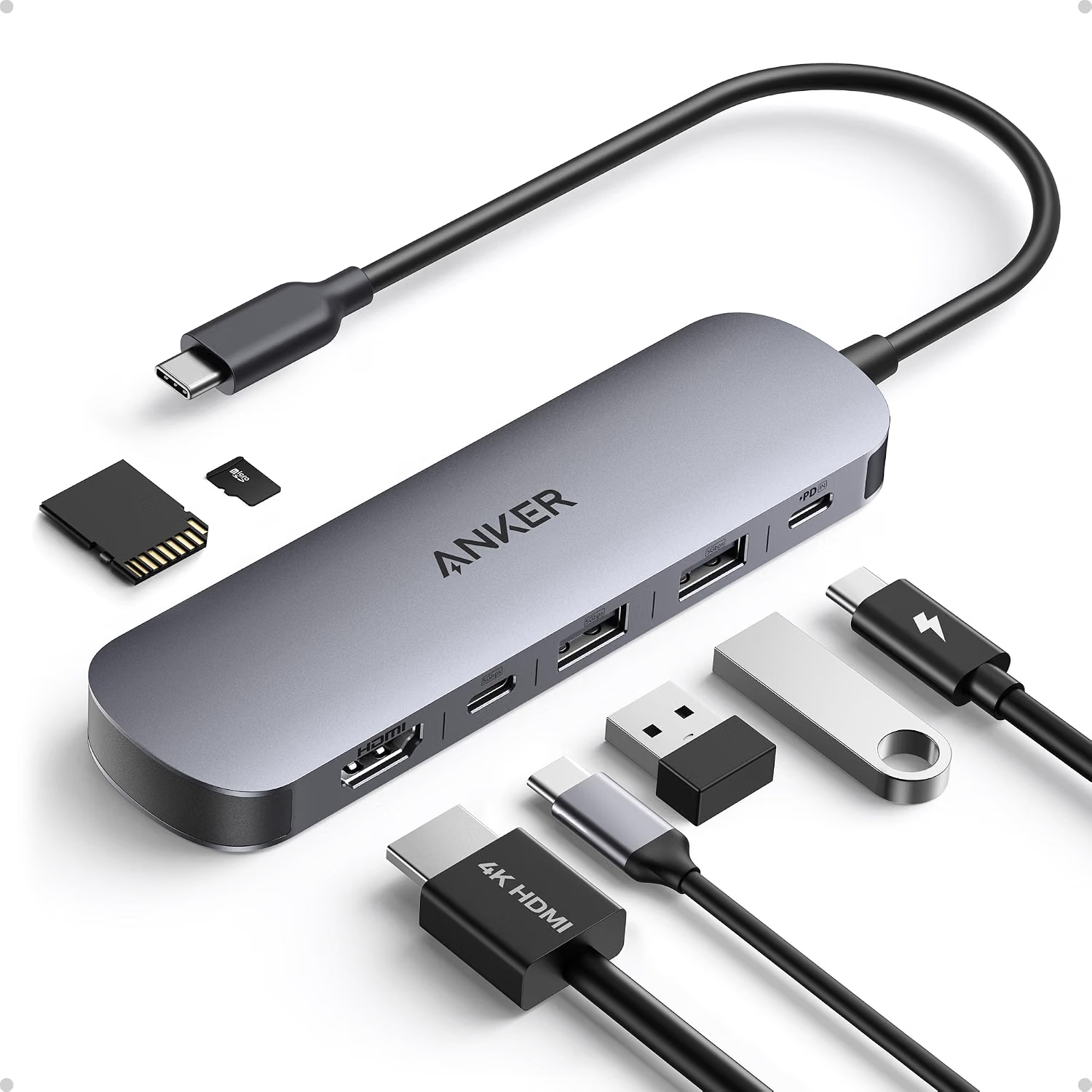
The Anker USB-C Hub 7-in-1 Multi-Port USB Adapter associated with the provided product listing is designed around this type of setup. Its configuration combines HDMI display output, USB data connections, memory-card connectivity, and USB-C Power Delivery pass-through charging. The product is particularly relevant to laptop users who need to expand connectivity without moving to a larger desktop docking station.
One of the most notable specifications associated with this model is support for 4K display output at up to 60Hz through HDMI when the host device and the complete connection support the necessary video standard. That capability can be useful for external monitors, televisions, projectors, home-office displays, and other compatible HDMI equipment.
However, USB-C hubs require a little more understanding than simply counting the number of ports. USB-C describes the physical connector, but not every USB-C port supports the same capabilities. A computer must support the required video-output technology for the HDMI connection, while charging depends on Power Delivery compatibility. Similarly, the maximum data-transfer rate of a USB port does not automatically determine the real-world speed of every connected storage device.
This guide explains the major features of the Anker 7-in-1 USB-C hub, how those features can be used in everyday situations, what compatibility issues to check, and how this type of hub compares with other connectivity categories.
Key Features
Seven-in-One Connectivity
The central purpose of a 7-in-1 USB-C hub is to consolidate several connections into one accessory.
The product configuration associated with the listing is designed to provide a combination of:
- HDMI display output
- USB-A connectivity
- USB-C data connectivity
- SD card connectivity
- microSD card connectivity
- USB-C Power Delivery input
The exact capabilities of individual ports should always be confirmed against the current product documentation because manufacturers can offer several visually similar hub configurations.
The benefit of a multi-port design is convenience. Instead of carrying separate adapters for a monitor, USB peripherals, memory cards, and charging, compatible devices can be connected through one hub.
4K at 60Hz HDMI Output
External-display support is one of the most useful functions of a modern USB-C hub.
The referenced Anker hub is marketed with support for 4K at 60Hz through its HDMI connection.
A 4K display provides a resolution of 3840 × 2160 pixels, while 60Hz refers to a refresh rate of up to 60 refreshes per second.
This combination can be useful for:
- Office productivity
- Photo editing
- Video playback
- Presentations
- Research
- Multitasking
- General desktop work
A larger external screen can provide more room for applications and documents than a laptop’s built-in display.
However, the 4K 60Hz specification should not be interpreted as a guarantee that every computer connected to the hub will produce that output.
The host computer must support compatible video output through its USB-C port.
USB Data Connectivity
USB ports allow the hub to connect conventional peripherals and external storage.
Depending on the specific port configuration, users can connect devices such as:
- Keyboard
- Mouse
- External SSD
- USB flash drive
- Webcam
- USB microphone
- Printer
- Game controller
- Other compatible USB accessories
USB data performance depends on the host computer, connected peripheral, cable, and other devices sharing the hub.
A fast external SSD can benefit from a higher-speed USB connection, while a keyboard or mouse requires comparatively little bandwidth.
SD and microSD Card Support
Memory-card connectivity can be particularly useful for photographers, videographers, drone users, and anyone who frequently transfers files from removable storage.
Instead of carrying a separate card reader, a compatible USB-C hub can provide access to SD and microSD cards directly.
Typical applications include:
- Moving photos from a camera
- Transferring drone footage
- Copying files from action cameras
- Accessing microSD cards
- Importing media into a laptop
- Backing up files while traveling
Actual transfer performance depends on the memory card, card-reader interface, computer, file sizes, and other factors.
The hub cannot make a slow memory card operate at the speed of a faster card.
USB-C Power Delivery
Power Delivery allows a compatible laptop to receive charging power while the hub remains connected.
This can be particularly useful for laptops that have only a small number of USB-C ports.
Without pass-through charging, a user might need one USB-C connection for the hub and another for the charger.
With a compatible PD-enabled hub, charging can potentially be routed through the hub while other peripherals remain connected.
The amount of power delivered depends on the charger, hub, cable, and laptop.
A hub should not be assumed to provide the full wattage of the wall charger to the computer because some power may be reserved for the hub and connected functions.
Understanding USB-C
USB-C is often misunderstood as a single technology.
It is primarily a connector and interface standard capable of supporting several different protocols.
Two USB-C ports can look identical while having very different capabilities.
One may support:
- USB data
- Charging
- Display output
Another might support:
- USB data only
A third may support Thunderbolt or USB4.
Therefore, before using a multi-port hub, it is important to identify what the computer’s USB-C port actually supports.
DisplayPort Alt Mode
Many USB-C hubs use DisplayPort Alt Mode to carry video from the host computer to the hub’s HDMI output.
If the host USB-C port does not support a compatible video-output mode, the HDMI connection may not work even though the hub itself supports external displays.
This is one of the most common compatibility issues with USB-C display adapters.
Power Delivery
Power Delivery is another separate capability.
A USB-C port may support data but not laptop charging.
Similarly, a laptop may charge through one USB-C port but not another.
Checking the computer manufacturer’s specifications before purchasing a hub can prevent confusion.
How It Can Be Used
Home Office
A home office is one of the most natural environments for a multi-port USB-C hub.
A laptop can be connected to:
- External HDMI monitor
- Keyboard
- Mouse
- External storage
- Webcam
- Memory card
- Charger
Instead of plugging several adapters directly into the computer, the hub can serve as the central connection point.
This can also make it easier to disconnect from the workstation.
Rather than removing several cables individually, the user can disconnect the hub from the laptop while leaving the accessories connected to the hub.
Remote Work
Remote workers often need a flexible setup.
A laptop may need to support video conferencing, external displays, storage, and standard USB peripherals.
A multi-port hub can provide the required connections while keeping the workstation relatively organized.
For example, an external monitor can provide a larger workspace while a USB webcam and microphone handle video calls.
The laptop can remain the central computer while the hub manages the physical connections.
Photography
Photographers frequently work with SD cards.
A built-in card reader on a USB-C hub can simplify the process of moving photographs from a camera to a laptop.
The workflow might look like this:
- Remove the memory card from the camera.
- Insert it into the appropriate card slot.
- Connect the hub to the laptop.
- Access the card through the operating system.
- Copy or organize the photographs.
- Safely eject the card before removal.
The hub does not replace proper backup practices.
Important photographs should generally be stored in more than one location rather than relying on a single memory card.
Video Production
Video files can be large, making convenient storage connectivity particularly useful.
A laptop could use the hub to connect an external SSD while an HDMI display provides a larger workspace.
A memory card can also be used to import camera footage.
However, video editors should remember that storage performance depends heavily on the SSD and connection.
A hub does not automatically turn a slower external drive into a high-performance editing drive.
Presentations
An HDMI output can be useful when connecting a laptop to a projector, conference-room display, or television.
This can be convenient for:
- Business presentations
- Classroom lessons
- Training sessions
- Conferences
- Meetings
Before an important presentation, it is sensible to test the laptop, hub, HDMI cable, and display together.
Different computers and projectors can have different display capabilities.
Student Workstations
Students can use a hub to expand the connectivity of a laptop used for schoolwork.
A setup might include:
- External monitor
- Keyboard
- Mouse
- USB storage
- SD card
This can turn a portable laptop into a more comfortable desk workstation.
Travel
A multi-port hub can reduce the number of individual adapters a traveler needs to carry.
A single accessory may provide access to display connectivity, USB peripherals, storage, and memory cards.
This can be especially useful for people who use laptops while traveling for business, photography, education, or remote work.
However, users should remember to bring the necessary cables.
A hub provides the interfaces, but it does not necessarily include every HDMI, USB, or charging cable required for a particular setup.
Connecting to a Television
The HDMI output can allow a compatible laptop to connect to an HDMI-equipped television.
This can be useful for:
- Presentations
- Photo viewing
- Streaming
- General desktop use
- Casual gaming
The actual resolution and refresh rate depend on the laptop, hub, HDMI cable, and television.
Who It May Be Suitable For
Laptop Users With Limited Ports
Users whose laptops have only one or two USB-C connections may benefit from having several peripheral interfaces available through one accessory.
MacBook Users
USB-C hubs are commonly used with MacBook systems because many modern MacBooks rely heavily on USB-C and Thunderbolt-style connections.
However, MacBook models can have different external-display capabilities.
Users should verify the specific model before expecting support for one or multiple external monitors.
Windows Laptop Users
Modern Windows laptops from many manufacturers support USB-C connectivity.
A hub can provide additional USB, display, and memory-card interfaces where supported.
Again, the exact capabilities depend on the laptop model.
Photographers
SD and microSD support can be particularly useful for photographers who need to transfer images without carrying a separate card reader.
Content Creators
Content creators often use cameras, external storage, microphones, monitors, and other accessories.
A multi-port hub can consolidate some of these connections.
Remote Professionals
People working from home or moving between offices may appreciate being able to maintain a relatively fixed desk setup while using a laptop as the primary computer.
Important Things to Consider
Check the Laptop’s USB-C Port
This should be the first compatibility check.
Look for information about:
- DisplayPort Alt Mode
- USB data capability
- Power Delivery
- Thunderbolt
- USB4
- External-display support
Do not assume that every USB-C port supports every function.
4K 60Hz Requires Compatible Hardware
The hub’s advertised display capability does not override the host computer’s limitations.
If the computer only supports a lower display mode through its USB-C port, the hub cannot increase that capability.
The monitor must also support 4K at 60Hz.
The HDMI cable must be suitable for the required signal.
All components in the chain matter.
One HDMI Output Is Not the Same as Multiple Displays
A 7-in-1 hub with one HDMI output should not be confused with a multi-monitor docking station.
If a user needs two or more external displays, the computer’s display architecture and the hub’s exact specifications need to be examined carefully.
Some laptops can support multiple external displays through Thunderbolt or USB4 docks, while others have more limited display capabilities.
USB Bandwidth Is Shared
A hub connects multiple devices to a common host connection.
This means that simultaneous high-speed transfers can compete for available bandwidth.
For example, copying large files between two external storage devices at the same time may not produce the same individual performance as connecting each device through separate high-speed host interfaces.
This is normal for hub-based connectivity.
Memory Card Speed Varies
SD and microSD cards have different performance ratings.
A faster card can transfer data more quickly than a slower card when the complete reader and host connection support the required standard.
If file transfers seem slow, the card itself should be considered before assuming the hub is responsible.
Power Delivery Is Not the Same as a Charger
The hub can provide a path for charging when connected to a compatible USB-C PD charger and host device.
It does not replace the wall charger itself.
Users should make sure the charger provides appropriate wattage for the laptop.
Charging Power Can Be Reduced
If a charger supplies a particular amount of power, the hub and connected devices may consume some of that energy.
Consequently, the laptop may receive less power than the charger’s maximum rating.
This is a normal consideration with pass-through charging.
Cable Quality Matters
USB-C cables can differ in data speed, charging capacity, and video support.
A cable that works for basic charging may not necessarily provide every capability required for high-speed data or video.
When troubleshooting, testing with a cable known to support the necessary specification can help identify compatibility problems.
External Display Settings Matter
The operating system may offer several display modes.
A user can often choose between mirroring the laptop screen and extending the desktop, depending on the computer and operating system.
The available resolution and refresh-rate choices depend on the host hardware and connected display.
Understanding 4K 60Hz
The phrase “4K 60Hz” contains two separate concepts.
4K Resolution
4K UHD commonly refers to a resolution of 3840 × 2160 pixels.
Compared with 1920 × 1080 Full HD, it provides substantially more pixels.
This can provide additional desktop space and sharper detail on compatible displays.
60Hz Refresh Rate
A 60Hz refresh rate means the display can refresh the image up to 60 times per second.
This is a common target for office monitors, televisions, presentations, and general desktop use.
Higher refresh rates such as 120Hz or 144Hz are also common in some gaming monitors, but support for those modes depends on the complete hardware chain.
A hub capable of 4K 60Hz should not automatically be assumed to support every higher-resolution or higher-refresh-rate configuration.
USB Hub Versus Docking Station
A USB-C hub and docking station can look similar but serve somewhat different purposes.
USB-C Hub
A compact hub typically provides:
- USB ports
- HDMI
- Memory-card readers
- Power Delivery
Its emphasis is portability and basic expansion.
Docking Station
A larger dock may provide:
- Multiple display outputs
- Ethernet
- Several USB ports
- SD and microSD
- Audio
- USB-C
- Power Delivery
- Additional connectivity options
For someone who simply wants to add several common ports to a laptop, a compact hub may be sufficient.
A more complex desktop workstation may benefit from a full docking station.
USB-C Hub Versus Individual Adapters
Another approach is to carry several individual adapters.
For example:
- USB-C to HDMI adapter
- USB-C to USB-A adapter
- USB-C SD card reader
This can provide flexibility but also creates more individual accessories and cables.
A multi-port hub combines those functions into one device.
The tradeoff is that all connected devices share the hub’s host connection.
USB-C Hub Versus USB-A Hub
A USB-A hub is mainly useful when the host computer provides USB-A connectivity.
A USB-C hub is more appropriate when the host device relies on USB-C.
The Anker product belongs to the USB-C hub category, making it particularly relevant to modern laptops and tablets with USB-C ports.
SD Card Versus microSD Card Connectivity
SD and microSD are physically different memory-card formats.
Full-size SD cards are common in digital cameras.
MicroSD cards are frequently used in action cameras, drones, smartphones, portable gaming systems, and other compact devices.
A hub that supports both formats can reduce the need for separate readers.
Users should still check the card format before inserting a card.
Practical Setup Example
Consider a laptop used as a home workstation.
The user has:
- 4K monitor
- Wireless mouse receiver
- USB keyboard
- External SSD
- Camera SD card
- USB-C laptop charger
A multi-port hub can serve as the central connection point.
The monitor connects through HDMI.
The keyboard and mouse receiver use USB.
The external SSD connects through a suitable USB data port.
The SD card can be inserted into the card reader.
The USB-C charger connects to the Power Delivery input if supported.
The laptop then needs only its USB-C connection to the hub.
The exact number of simultaneous connections and performance levels depend on the hub’s specifications and the laptop.
Troubleshooting Common Problems
HDMI Shows No Signal
Check whether the laptop’s USB-C port supports video output.
Then check:
- HDMI cable
- Monitor input
- Display settings
- Hub connection
- Laptop compatibility
If the USB-C port does not support video output, the HDMI function may not work.
Display Works but Not at 4K 60Hz
Check the laptop’s supported video mode.
Then verify the HDMI cable and monitor.
The hub can only transmit what the host system provides.
USB Device Is Not Recognized
Disconnect and reconnect the device.
Try another port.
Test the device directly on the computer if possible.
This can help determine whether the issue originates with the peripheral, hub, or host.
SD Card Is Not Detected
Remove and reinsert the card.
Check the card’s physical condition.
Test the card directly with another reader if available.
This can help distinguish a card problem from a hub or software issue.
Laptop Is Not Charging
Verify that:
- The charger supports USB Power Delivery.
- The charger provides sufficient wattage.
- The USB-C cable supports the necessary power level.
- The laptop supports charging through its USB-C port.
- The charger is connected to the hub’s appropriate PD input.
External SSD Is Slow
Check the SSD’s specifications and cable.
Also consider whether several high-bandwidth devices are active simultaneously.
A USB hub shares its host connection, so concurrent transfers can affect performance.
Maintaining a USB-C Hub
Proper handling can help keep the ports and cable in good condition.
Avoid forcing connectors into the ports.
USB-C connectors are reversible, but they should still be inserted carefully.
Keep dust and debris away from the ports.
Avoid placing heavy objects on the hub or cable.
When disconnecting the hub from a laptop, hold the connector rather than pulling the cable itself.
If the hub is frequently transported, a small protective pouch can help prevent scratches and cable damage.
Avoid moisture and extreme temperatures beyond the manufacturer’s recommended operating conditions.
Frequently Asked Questions
What is the Anker 7-in-1 USB-C hub?
It is a multi-port USB-C adapter designed to expand a compatible computer’s connectivity with functions such as HDMI display output, USB data, memory-card access, and USB-C Power Delivery.
Does it support 4K at 60Hz?
The product is marketed with 4K 60Hz HDMI capability. The actual output depends on the host computer, HDMI cable, monitor, and supported USB-C video standard.
Can it connect to a 4K monitor?
Yes, a compatible 4K monitor can be connected through HDMI when the host computer and the complete connection support the required resolution and refresh rate.
Can it connect to a television?
Yes, provided the television has a compatible HDMI input and the computer supports the required video output through USB-C.
Does it work with MacBook?
USB-C hubs are commonly used with MacBook computers, but exact display and peripheral support varies between MacBook models. The specific computer should be checked before use.
Does it work with Windows laptops?
It can work with compatible Windows laptops that support the necessary USB-C functions.
Does every USB-C port support HDMI output?
No.
USB-C is a connector format, not a guarantee of video-output capability.
The host computer must support a compatible video-output technology.
Can it charge a laptop?
The hub’s Power Delivery function can provide pass-through charging for compatible laptops when connected to an appropriate USB-C PD charger.
Does the hub include a charger?
The hub should not automatically be assumed to include a wall charger. The contents of the current Amazon configuration should be checked before purchase.
Does it support USB-A devices?
Yes, the multi-port design includes USB connectivity for compatible USB-A peripherals.
Can I connect an external SSD?
Yes, a compatible external SSD can be connected through the appropriate USB data port.
Actual transfer speed depends on the SSD, cable, computer, hub, and other connected devices.
Can I connect an SD card?
The 7-in-1 configuration includes memory-card functionality intended for compatible SD and microSD cards.
Can I use it for photography?
Yes. SD and microSD card connectivity can be useful for transferring photographs and other media files to a laptop.
Can I use it for video editing?
The hub can be part of a video-editing setup by connecting external storage, displays, and memory cards.
However, editing performance depends primarily on the computer, storage system, and software.
Does a USB-C hub increase computer performance?
No.
A hub expands connectivity. It does not upgrade the computer’s processor, GPU, memory, or internal storage.
Does it provide multiple HDMI outputs?
The product configuration discussed here is centered around a single HDMI display output.
It should not be treated as a multi-HDMI workstation dock.
Can it run two external monitors?
That depends on the exact hub configuration and the host computer’s display capabilities. A single-HDMI hub should not automatically be expected to provide two independent HDMI displays.
Can I use a 120Hz monitor?
A monitor can physically connect through HDMI, but the available resolution and refresh rate depend on the hub, host device, HDMI standard, cable, and monitor.
4K 60Hz support does not automatically mean that 4K 120Hz is supported.
Does it require drivers?
Many standard USB-C hubs operate without special drivers on supported modern operating systems, although specific functions can vary by host device and operating system.
Can I connect a keyboard and mouse simultaneously?
Yes, compatible USB keyboards and mice can be connected through the hub.
Can I connect a webcam?
A compatible USB webcam can be connected.
The webcam’s bandwidth and power requirements should be considered if several other demanding USB devices are active.
Can I connect a printer?
A compatible USB printer can be connected through the appropriate USB port.
Can I connect a game controller?
Yes, compatible USB controllers can be used through the hub.
Does the hub provide Ethernet?
The seven-in-one configuration described here is focused on HDMI, USB, memory cards, and Power Delivery. Users who require Ethernet should consider a hub or dock that specifically includes an RJ45 network port.
Does it provide an audio jack?
The configuration discussed here is not primarily an audio adapter. Users requiring a dedicated 3.5mm audio connection should verify the exact port list before selecting a hub.
Can I use the hub while charging the laptop?
Yes, pass-through charging is one of the intended functions when the laptop, charger, cable, and hub are compatible.
Why does the laptop charge more slowly through a hub?
Some power is used by the hub and its connected devices. The laptop may therefore receive less power than the maximum rating printed on the wall charger.
Why does the monitor show a lower refresh rate?
The host computer, hub, HDMI cable, or monitor may have a limitation. Check each component’s supported resolution and refresh-rate specifications.
Why does my USB-C device fit but not work?
Physical compatibility does not guarantee functional compatibility.
A USB-C port may not support the particular protocol required by the device.
Is a USB-C hub suitable for travel?
Yes. A compact multi-port hub can reduce the number of individual adapters needed when traveling with a laptop.
What should I check before using this hub?
Check the laptop’s USB-C capabilities, external-display support, Power Delivery compatibility, required USB speeds, and the interfaces needed by your peripherals.
Conclusion
The Anker USB-C Hub 7-in-1 is designed to solve a common problem with modern laptops: limited physical connectivity.
By combining several interfaces into one USB-C accessory, a multi-port hub can make it easier to connect an external HDMI display, USB peripherals, removable storage, memory cards, and a compatible charger.
The 4K 60Hz HDMI capability is particularly relevant for users who want to connect a compatible laptop to a high-resolution external monitor or television. At the same time, the USB ports can accommodate everyday accessories such as keyboards, mice, storage devices, webcams, and other peripherals.
Memory-card connectivity adds another practical use case, especially for photographers and content creators who regularly transfer files from SD or microSD cards.
Power Delivery pass-through can also help create a cleaner workstation by allowing a compatible laptop to remain connected to its charger while using the hub for other accessories.
The most important consideration is compatibility.
USB-C is not a guarantee that every function will work on every computer. The host device must support the appropriate video-output technology for HDMI, and USB-C Power Delivery charging requires compatible hardware. Similarly, actual USB and memory-card transfer speeds depend on the connected devices and the rest of the system.
A multi-port hub also shares the resources of its host connection. Connecting several demanding storage devices at once may produce different performance from connecting a single drive directly to the computer.
For users who need a portable way to expand the connectivity of a compatible USB-C laptop, a 7-in-1 hub can provide a useful combination of display, USB, memory-card, and charging functions without the footprint of a larger docking station.
The key is to match the hub’s capabilities with the computer and peripherals that will actually be used. Checking USB-C video support, charging requirements, display specifications, cable standards, and peripheral compatibility before setting up the system can help avoid many common connectivity problems.