Introduction
Modern laptops and desktop computers often include fewer physical ports than users expect. A slim notebook may have only a couple of USB connections, while a desktop computer can quickly run out of convenient ports once a keyboard, mouse, printer, external storage device, webcam, or other accessory is connected.
A USB hub provides a straightforward way to expand one USB connection into several additional ports. Instead of repeatedly disconnecting peripherals or reaching behind a desktop computer to change cables, a hub can provide a more accessible connection point for multiple USB devices.
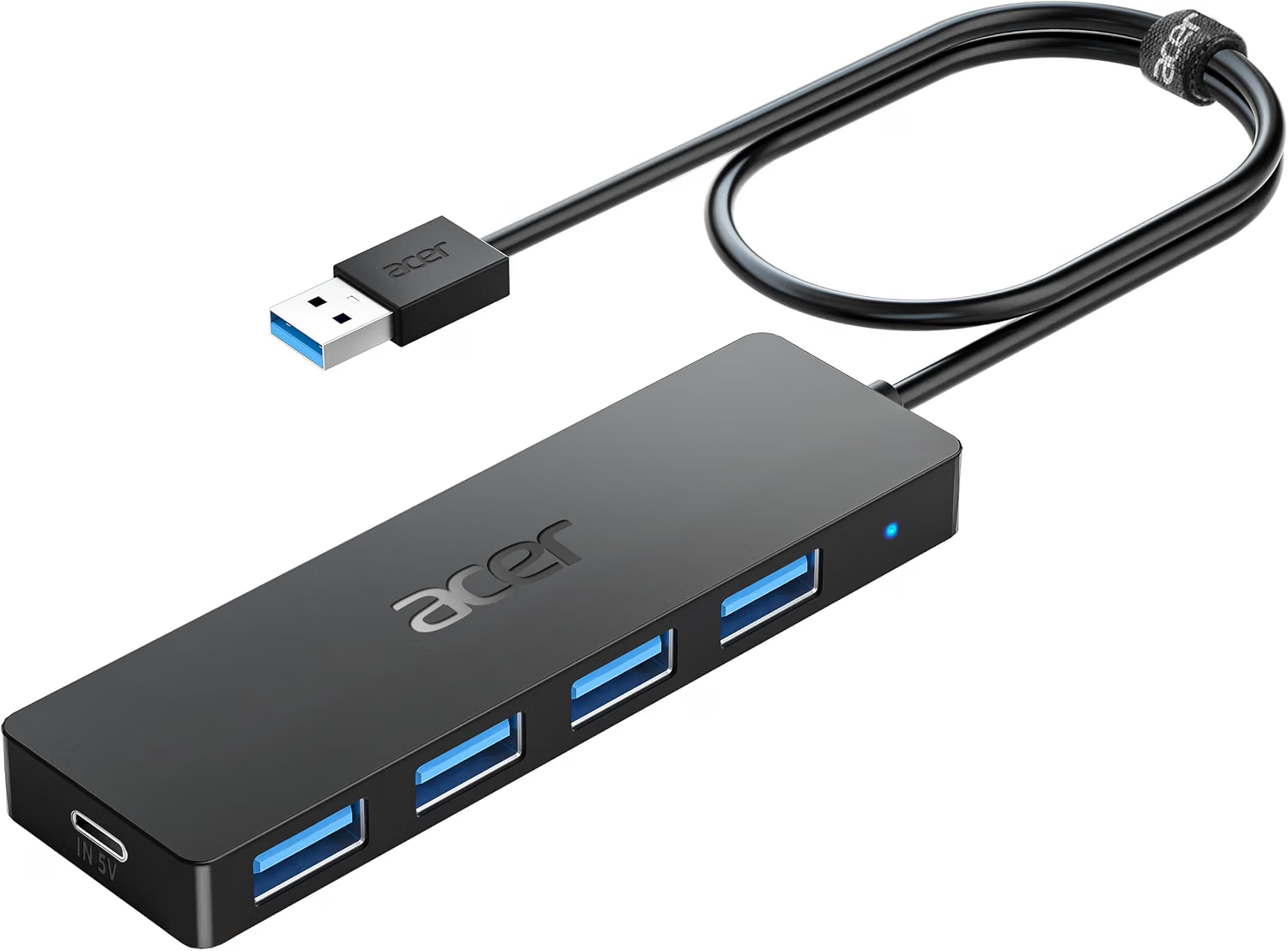
The Acer USB Hub 4 Ports, Multiple USB 3.0 Hub, USB-A Splitter for Laptop/PC with a 2-foot cable is designed around this basic connectivity concept. It provides four USB-A ports through a single host connection and uses a cable approximately two feet long. The product is aimed at computers and other compatible devices that use USB-A connectivity.
The hub is particularly relevant for people who use several conventional USB accessories at the same time. A desktop workstation might use the available ports for a keyboard, mouse, printer, and external storage. A laptop user could use the hub to connect a mouse, USB flash drive, keyboard, and another peripheral without constantly swapping cables.
Understanding what a USB hub actually does is important, however. A hub does not create four completely independent USB controllers. The connected devices share the host computer’s USB connection and its available bandwidth and power. Similarly, the presence of a USB 3.0-type interface does not mean every connected device will transfer data at the maximum theoretical USB speed.
This article explains the Acer four-port USB hub in practical terms, including its port configuration, USB connectivity, cable length, everyday applications, compatibility considerations, power limitations, and differences between a multi-port hub and other types of USB accessories.
Key Features
Four USB-A Ports
The central feature of the Acer hub is its four-port design.
A single connection to the computer provides access to four USB-A ports on the hub. This allows multiple peripherals to remain connected at the same time.
For a typical workspace, those four ports could accommodate devices such as:
- Keyboard
- Mouse
- USB flash drive
- External hard drive
- Webcam
- Printer
- USB microphone
- Game controller
- Card reader
- Wireless receiver
The actual combination depends on the computer and the power requirements of the connected devices.
The advantage of four ports is mainly convenience. Instead of using one computer port for one peripheral, the hub creates a small central connection point where several compatible USB devices can be attached.
USB 3.0-Class Connectivity
The product is described as a USB 3.0 hub.
USB 3.0 introduced a substantially higher theoretical data-transfer rate than older USB 2.0 connections. The commonly associated USB 3.0 signaling rate is up to 5Gbps.
It is important to distinguish this theoretical interface speed from actual file-transfer performance.
If a high-speed external SSD is connected, the storage device may be capable of taking advantage of a faster USB connection. A basic keyboard, however, uses very little bandwidth and will not meaningfully benefit from the maximum data rate.
Real-world performance depends on several factors, including the connected device, cable, computer hardware, operating system, file type, and simultaneous activity on other ports.
Therefore, USB 3.0 should be understood as the connection standard supported by the hub rather than a guarantee that every connected device will operate at a fixed transfer speed.
USB-A Compatibility
The hub is designed around USB-A connections.
USB-A remains one of the most widely used USB connector types for computers and peripherals. Many keyboards, mice, printers, storage devices, game controllers, webcams, and other accessories continue to use this connector.
This can make a USB-A hub particularly useful for older or conventional peripherals.
At the same time, users with a modern laptop that only provides USB-C ports will need to consider the host connection carefully. A USB-A hub is not automatically compatible with a USB-C-only computer simply because both belong to the USB family.
A suitable USB-C-to-USB-A adapter or USB-C hub with an appropriate host interface may be necessary in that situation.
Two-Foot Cable
The hub includes a cable approximately two feet long.
Cable length is a small specification, but it can have a noticeable effect on usability.
A very short cable can leave a hub hanging directly beside a laptop port or make it difficult to position the hub conveniently.
A longer cable can allow the hub to sit on a desk rather than directly against the computer.
A two-foot cable provides some flexibility for positioning while remaining relatively compact.
For a desktop workstation, this can allow the hub to be placed within easy reach instead of requiring users to access ports located behind a computer tower.
What Is a USB Hub?
A USB hub is essentially a connection-expansion device.
A computer’s USB controller communicates with a hub, and the hub provides additional USB ports for connected peripherals.
This arrangement allows multiple devices to communicate with the computer through a shared host connection.
For example, imagine a laptop with one available USB-A port.
Without a hub, the user can connect one USB-A device.
With a four-port USB hub, that same host connection can provide four additional USB-A connection points.
The hub does not increase the computer’s processing power or storage capacity. It simply makes the existing USB interface more accessible to multiple devices.
This distinction helps explain both the advantages and limitations of the product.
How It Can Be Used
Home Office
A home office is one of the most straightforward environments for a four-port USB hub.
A laptop or desktop computer may need several peripherals at once.
A possible setup could include:
- USB keyboard
- USB mouse
- Webcam
- USB microphone
Instead of connecting each device individually to separate ports, multiple peripherals can be connected to the hub.
This can also simplify cable management.
Rather than having cables spread across several areas of the computer, a group of USB accessories can be concentrated around one connection point.
Connecting External Storage
External storage devices are another common USB application.
A user might connect a USB flash drive, portable hard drive, or external SSD through the hub.
The USB 3.0-class interface can be useful when working with compatible high-speed storage.
However, storage performance is determined by the complete system.
If the drive itself is slower than the USB interface, the hub cannot increase its speed.
Similarly, transferring very large files while other high-bandwidth USB devices are active can affect the amount of bandwidth available to each device.
Keyboard and Mouse
Keyboards and mice generally have very modest bandwidth requirements.
This makes them natural candidates for a USB hub.
A desktop user could connect both through the Acer hub and leave additional ports available for storage, a printer, or another accessory.
Because basic input devices typically do not require large amounts of data bandwidth, using them through a USB hub is generally different from transferring large files through an external SSD.
Webcam
A USB webcam can also be connected through a hub when the computer and webcam support the arrangement.
For video conferencing, online classes, remote work, and streaming, a webcam can be one of several peripherals attached to a laptop or desktop.
Users should keep in mind that cameras continuously transmit data, so the total USB workload can matter when multiple demanding devices are connected simultaneously.
USB Microphone
A USB microphone can provide another convenient use case.
Someone working from home might connect a microphone alongside a keyboard, mouse, and webcam.
The hub can act as a central connection point for those accessories.
Audio devices can have different power and bandwidth requirements, so users should check the manufacturer’s specifications if an accessory behaves unexpectedly when connected through a hub.
Printer
Many printers still use USB-A connections.
A four-port hub can provide a convenient connection point for a printer when the computer has limited USB ports.
This can be especially useful with a laptop that is regularly connected to a home office setup.
Wireless printing is another option, but USB remains useful for printers that do not have convenient wireless connectivity.
Game Controllers
USB game controllers and other gaming peripherals can also be connected through a hub.
For example, a computer could have a keyboard, mouse, controller, and headset or other USB accessory connected through the hub.
Gaming peripherals vary considerably in power requirements, so users should be aware that bus-powered hubs have limitations.
USB Flash Drives
USB flash drives are among the simplest devices to use with a multi-port hub.
A user could connect a flash drive temporarily without disconnecting the keyboard or mouse already connected to the hub.
This is one of the practical benefits of having several accessible ports in a single location.
Card Readers
Photographers and other users who transfer files from memory cards may use USB card readers.
A card reader connected through the hub can provide an additional storage-transfer option without occupying another dedicated computer port.
As with external drives, the final transfer speed depends on the card, reader, USB interface, cable, and computer.
Who It May Be Suitable For
Laptop Users With Limited USB Ports
People who frequently run out of USB ports can benefit from a multi-port hub.
Instead of repeatedly disconnecting accessories, several devices can remain connected.
This is particularly useful when a laptop is used as both a portable computer and a desktop workstation.
Desktop Computer Users
Desktop computers often have multiple USB ports, but not all of them are conveniently located.
A hub can bring several ports closer to the front or side of the workspace.
For example, if a desktop tower sits under a desk, a hub positioned on the desktop can provide easier access for flash drives, controllers, or other temporary devices.
Students
Students often use laptops with keyboards, mice, external storage, printers, and other accessories.
A compact four-port hub can provide additional connectivity for a study setup without requiring a large docking station.
Remote Workers
Remote workers may have a combination of webcam, microphone, keyboard, mouse, and external storage.
A hub can consolidate these connections and make it easier to switch between a mobile laptop setup and a home office arrangement.
Travelers
The relatively compact design of a four-port hub can make it useful for travel.
Someone carrying a laptop can use the hub when arriving at an office, classroom, hotel workspace, or temporary desk.
The two-foot cable also gives some flexibility when positioning the hub around the computer.
Users With Multiple USB-A Accessories
People who already own many USB-A peripherals may find a USB-A hub particularly practical.
There is no need to replace every accessory simply because the computer has limited ports.
However, users with a USB-C-only laptop should first verify the required host connection.
Important Things to Consider
A USB Hub Does Not Create Independent Bandwidth
One of the most important concepts to understand is shared bandwidth.
All devices connected through the hub communicate with the computer through the hub’s host connection.
This means that the available USB bandwidth is shared.
Suppose an external SSD is transferring a large amount of data while another high-speed storage device is also active.
The devices are competing for bandwidth through the same host connection.
The result may be lower performance for each device compared with using separate host connections.
This is normal behavior for USB hubs.
Power Is Also Shared
USB hubs can draw power from the computer.
That power is then used by the hub and, depending on the design and connected devices, may also be available to attached peripherals.
Low-power devices such as keyboards and mice generally place relatively modest demands on the USB connection.
Some external drives, optical devices, LED accessories, and other peripherals can require more power.
If a connected device requires more power than the hub or host port can provide, it may fail to operate properly or may disconnect intermittently.
Bus-Powered Versus Powered Hubs
A compact USB hub is commonly powered through the computer’s USB connection.
This is known as bus-powered operation.
The alternative is a powered hub that uses a separate wall adapter.
A powered hub can provide more power capacity for demanding peripherals because the hub does not rely entirely on the host computer’s USB power.
The Acer four-port hub is best considered in the context of ordinary USB peripherals rather than assuming it can power every type of USB device.
USB-A Versus USB-C
USB-A and USB-C describe different physical connector designs.
The Acer hub uses USB-A ports for its connected peripherals.
Modern laptops increasingly use USB-C, so users should inspect their computer before selecting a hub.
A laptop with one or more USB-A ports can connect directly to the appropriate host interface.
A computer with only USB-C ports requires a compatible solution between the computer and the USB-A hub.
USB 3.0 Does Not Guarantee 5Gbps Real-World Transfers
USB 3.0 is associated with a theoretical signaling rate of up to 5Gbps.
Actual data transfer is usually lower.
Several factors contribute to the difference.
The storage device may have a slower controller.
The file system may affect performance.
Small files can transfer differently from one large sequential file.
The computer’s USB controller and operating system introduce overhead.
Other connected USB devices can share the available bandwidth.
This is why a product should not be evaluated solely by comparing theoretical USB numbers.
Check the Connected Device
Before connecting a demanding peripheral, check its power and compatibility requirements.
A keyboard and mouse have very different requirements from a bus-powered external hard drive.
A hub that works perfectly with several low-power peripherals may behave differently when multiple high-power devices are connected.
Consider Cable Placement
The two-foot cable is long enough to provide some positioning flexibility, but the ideal arrangement depends on the computer.
On a laptop, the hub can be placed beside the computer.
On a desktop, the cable may be useful for moving the hub onto a desk surface.
Users should avoid sharply bending or crushing the cable.
Avoid Overloading the Ports
A USB hub should not be treated as an unlimited source of power.
If several demanding devices are connected, monitor for symptoms such as:
- Devices disconnecting
- Storage drives disappearing
- Intermittent connections
- Devices failing to start
- Unexpected USB errors
These symptoms can have several possible causes, but power or bandwidth limitations are among the factors worth checking.
USB Hub Versus USB Splitter
The terms “USB hub” and “USB splitter” are sometimes used interchangeably in consumer product descriptions.
Technically, a USB hub manages communication between one host connection and multiple USB devices.
A simple cable splitter may have a different function and may not provide the same USB hub controller architecture.
For practical computer use, a proper multi-port USB hub is the more relevant category when the goal is connecting several independent peripherals.
USB Hub Versus Docking Station
A USB hub generally focuses on adding USB ports.
A docking station usually provides a much broader selection of interfaces.
A docking station may include:
- HDMI or DisplayPort
- Ethernet
- USB-A
- USB-C
- SD card slots
- Audio
- Power Delivery
- Multiple display outputs
The Acer four-port hub is more focused.
Its purpose is primarily to expand USB connectivity rather than create a complete desktop docking environment.
For a user who simply needs additional USB ports, a large docking station may provide functionality that is unnecessary.
For someone who needs multiple displays, Ethernet, memory-card readers, and charging, a more comprehensive dock may be more appropriate.
USB 3.0 Hub Versus USB 2.0 Hub
USB 2.0 has a much lower theoretical signaling rate than USB 3.0.
The difference becomes especially relevant for high-speed storage.
For simple input devices such as keyboards and mice, the practical difference is usually much less noticeable.
A USB 3.0-class hub is therefore more versatile for mixed-use environments where both ordinary peripherals and higher-speed data devices may be connected.
Four-Port Hub Versus Larger USB Hub
A four-port hub provides a relatively compact balance between expansion and simplicity.
A larger hub may provide six, seven, ten, or more ports.
More ports can be useful in a permanent workstation.
However, more ports can also mean a larger physical footprint and greater potential demand on the host connection.
A four-port configuration can be sufficient for many everyday setups.
For example, a user might connect:
- Keyboard
- Mouse
- External storage
- Webcam
If more devices are needed later, a larger hub or docking station may become more appropriate.
Understanding USB Device Types
Not all USB peripherals behave in the same way.
Human Interface Devices
Keyboards, mice, and many controllers fall into categories that generally require relatively little bandwidth.
They are common candidates for hub connectivity.
Storage Devices
External SSDs, hard drives, and flash drives can generate significantly more data traffic.
These devices are more likely to expose bandwidth limitations.
Audio Devices
USB microphones, audio interfaces, and other audio equipment may have specific driver and power requirements.
Compatibility should be checked if an audio device behaves unexpectedly.
Cameras
Webcams continuously transmit video data.
Higher-resolution cameras can place greater demands on the USB connection than basic peripherals.
Charging Devices
A USB port being physically capable of supplying power does not necessarily mean it is designed as a dedicated charging station.
Users should follow the specifications of the hub and connected device rather than assuming every USB port can safely provide high-power charging.
Practical Workspace Examples
Basic Home Office
A user could connect:
- Keyboard
- Mouse
- Webcam
- USB headset
This keeps the main laptop connection relatively simple.
Small Creative Workspace
A photographer might use:
- Keyboard
- Mouse
- USB card reader
- External storage
The card reader and storage device may benefit more from a high-speed USB connection than the keyboard or mouse.
Study Desk
A student could connect:
- Keyboard
- Mouse
- USB flash drive
- Printer
The hub provides a convenient central connection point for the study area.
Desktop Gaming Setup
A computer user might connect:
- Keyboard
- Mouse
- Game controller
- USB headset
The suitability of this arrangement depends on the power requirements and USB implementation of the individual peripherals.
Troubleshooting Common Problems
A Device Is Not Recognized
Start by disconnecting the device and reconnecting it.
Try another USB port on the hub.
If possible, test the peripheral directly on the computer.
This can help determine whether the issue is related to the peripheral, hub, cable, or host computer.
An External Drive Disconnects
An external drive that repeatedly disconnects may be affected by power limitations, cable problems, storage-device issues, or USB bandwidth.
If the drive works reliably when connected directly to the computer but not through the hub, the hub configuration deserves further investigation.
A separately powered hub may be worth considering for particularly demanding peripherals.
Transfer Speeds Are Lower Than Expected
Check the storage device’s specifications first.
Then check the cable and host connection.
Remember that the USB 3.0 specification describes a maximum interface signaling rate rather than a guaranteed file-transfer speed.
The Hub Works With a Mouse but Not a Hard Drive
This can happen when the hard drive has greater power or bandwidth requirements.
A mouse may use very little power and bandwidth, while a mechanical hard drive or external SSD can place greater demands on the connection.
A USB-C Laptop Cannot Connect Directly
If the computer does not have a USB-A host port, the user needs a compatible connection solution.
A USB-C-to-USB-A adapter can potentially provide physical compatibility, but the exact adapter and USB standard should be appropriate for the intended use.
Maintenance and Care
USB hubs do not generally require complicated maintenance, but a few habits can help preserve reliable connectivity.
Keep the ports free from dust and debris.
Avoid placing heavy objects on the hub or cable.
Do not pull the hub by its cable when disconnecting it.
Hold the connector when removing it from the computer.
If the hub is frequently transported, storing it in a small protective compartment can reduce unnecessary stress on the cable and connectors.
Avoid exposing the hub to moisture or extreme environmental conditions beyond its intended operating environment.
If a USB port becomes physically damaged, it is better to stop using that port rather than forcing connectors into it.
Frequently Asked Questions
What is the Acer four-port USB hub?
It is a USB hub designed to expand one compatible computer USB connection into four USB-A ports for connecting multiple peripherals.
How many USB ports does it have?
The hub provides four USB-A ports.
Is it a USB 3.0 hub?
The product is described as a USB 3.0 hub, supporting the higher-speed USB 3.x category associated with up to 5Gbps theoretical signaling.
What connector type does it use?
The hub is designed around USB-A connections for its peripheral ports.
Can I connect a keyboard and mouse at the same time?
Yes. A keyboard and mouse can occupy two of the four available USB ports, assuming the computer and peripherals are compatible.
Can I connect an external hard drive?
A compatible external hard drive can be connected through the hub.
However, external drives can require more power than basic USB peripherals, so the computer’s available USB power and the drive’s requirements should be considered.
Can I connect an external SSD?
Yes. A compatible external SSD can use one of the USB ports.
Actual transfer performance depends on the SSD, USB connection, cable, computer, and other connected devices.
Does USB 3.0 mean I will get 5Gbps file transfers?
No.
5Gbps is the theoretical signaling rate associated with USB 3.0. Actual file-transfer speeds are normally lower and depend on the entire system.
Can I use all four ports at the same time?
The hub is designed to provide four USB ports that can be used for multiple peripherals.
The practical limitation is that all connected devices share the host connection and available power.
Can I connect a printer?
A compatible USB printer can be connected through the hub.
The computer’s operating system and printer software still determine whether the printer works correctly.
Can I connect a webcam?
A compatible USB webcam can be connected through the hub.
Higher-resolution webcams may place greater demands on the USB connection than basic peripherals.
Can I use it with a laptop?
Yes, provided the laptop has a compatible host USB connection.
The exact compatibility depends on the laptop’s ports and operating system.
Can I use it with a desktop PC?
Yes. It can be useful for adding accessible USB ports to a desktop workstation.
Is the hub useful if my computer already has several USB ports?
It can still be useful if the existing ports are inconveniently positioned or if additional connections are needed.
For example, a desktop tower may have ports behind the computer while a hub can sit on the desk.
How long is the cable?
The product is specified with a cable approximately two feet long.
Why is cable length important?
A longer cable can provide greater flexibility when positioning the hub.
A two-foot cable can allow the hub to sit beside or in front of a computer rather than directly against the host port.
Can I connect a USB-C device?
The hub provides USB-A peripheral ports.
A USB-C device would require an appropriate USB-C-to-USB-A cable or adapter, assuming the device supports that connection method.
Can I connect the hub directly to a USB-C-only laptop?
Not through a USB-A host connection unless an appropriate adapter or compatible interface is used.
A USB-C-only laptop may be better served by a USB-C hub designed specifically for that host connection.
Does the hub provide HDMI?
No. This is primarily a USB expansion hub.
It should not be confused with a USB-C docking station that includes HDMI or DisplayPort.
Can it charge my laptop?
A standard USB hub should not be treated as a laptop charging solution.
Its primary purpose is USB peripheral connectivity.
Laptop charging depends on the computer’s charging architecture and the specifications of the hub and host connection.
Can I charge my phone through it?
The availability and suitability of USB charging depend on the connected computer, hub specifications, and phone’s charging requirements.
A USB data hub should not automatically be assumed to provide the same charging performance as a dedicated charger.
Does it require an external power adapter?
Compact USB hubs of this type are generally designed to draw operating power from the host computer rather than relying on a separate wall adapter.
Users should consider the power requirements of connected peripherals.
What happens if I connect too many power-hungry devices?
Devices may fail to operate correctly, disconnect, or behave intermittently if the available USB power is insufficient.
A separately powered USB hub may be more appropriate for setups involving several demanding peripherals.
Is it suitable for external SSDs and flash drives?
Yes, compatible USB storage devices can be connected.
The actual speed depends on the storage hardware and complete USB connection.
Can I use it for gaming peripherals?
Compatible gaming peripherals such as keyboards, mice, controllers, and some headsets can be connected.
The power and bandwidth requirements of individual gaming devices should still be considered.
Is it a docking station?
It is more accurately described as a multi-port USB hub.
A docking station generally provides a broader selection of connectivity options such as video output, Ethernet, audio, memory-card readers, and charging.
Is it better to use a powered USB hub for external hard drives?
A powered hub can be useful when several connected devices require significant power.
Whether one is necessary depends on the specific devices and the available power from the host computer.
Can I use the hub with multiple storage devices?
Multiple compatible storage devices can be connected, but they share the available host USB bandwidth.
Simultaneous transfers may therefore produce lower individual speeds than using separate high-speed host connections.
Does the hub increase my computer’s USB speed?
No.
It expands connectivity but does not upgrade the computer’s underlying USB controller.
Does it increase the computer’s storage?
No.
It provides access to external storage devices but does not add internal storage capacity.
What should I check before using the hub?
Check the computer’s USB port type, the required USB standard, the connected devices’ power requirements, and whether the devices are compatible with operating through a USB hub.
Conclusion
The Acer USB Hub 4 Ports provides a straightforward way to expand USB connectivity on a compatible laptop or desktop computer.
Its four USB-A ports can accommodate a range of everyday peripherals, including keyboards, mice, storage devices, printers, webcams, microphones, card readers, and game controllers. The USB 3.0-class interface also makes the hub relevant to users who need more than basic low-bandwidth peripherals.
The approximately two-foot cable adds some flexibility to the setup. On a laptop, the hub can sit beside the computer rather than directly against its USB port. On a desktop, it can bring several convenient USB connections to the surface of a desk even when the computer’s built-in ports are located elsewhere.
At the same time, a USB hub has inherent limitations.
All connected devices communicate through the host connection, so available bandwidth is shared. Power is also an important consideration, particularly when external drives or other demanding peripherals are connected. A hub cannot create additional independent USB controllers, increase a computer’s processing capability, or guarantee maximum transfer speeds for every connected device.
The distinction between USB-A and USB-C is also worth checking before selecting this type of accessory. Users with a computer that still provides USB-A ports can use the hub in a straightforward way, while USB-C-only laptops may require a different hub or a suitable adapter.
For ordinary home-office, school, travel, desktop, and peripheral-expansion scenarios, a four-port USB hub can provide a practical middle ground between using individual adapters and investing in a larger docking station.
The most important step is to consider the devices that will actually be connected. A keyboard and mouse have very different requirements from multiple external SSDs or other high-power peripherals. Matching the hub to the intended workload can help create a more reliable setup.
For users who need several accessible USB-A ports from a single compatible computer connection, the Acer four-port USB hub represents a simple connectivity-focused approach without adding the additional video, networking, and display functions found on larger docking stations.